Manuals · Hersof Admin
Manual Hersof Admin
Hersof Admin is your administration online: quotes, invoices that follow Belgian rules, customer follow-up, purchasing, VAT returns and the export for your accountant. Part 1 helps the administrator get started on day one. Part 2 explains every screen.
Part 1 — Quick start for the administrator
Seven steps and you are ready to invoice. Allow half an hour to an hour, depending on how many customers and products you bring with you.
Getting started — as administrator of a new account you see the card Getting started with Hersof Admin at the top of Invoices: five steps (company details, customers, products, colleagues, your first quote), each with one button. What is done gets ticked automatically; the card disappears when everything is done, or with Hide.
1 Signing in
- You receive an email from Hersof: "You have been invited to Hersof". Click Choose my password, choose a password (at least 6 characters) and click Set password.
- Sign in with your email address and password at hersof.be/login.html. If you use several Hersof apps, switch between them with the tabs at the top: Admin · Maintenance · Plan.
The link in the email only works once. Forgotten your password? Enter your email address on the sign-in page and click Forgotten your password?.
2 Your company details
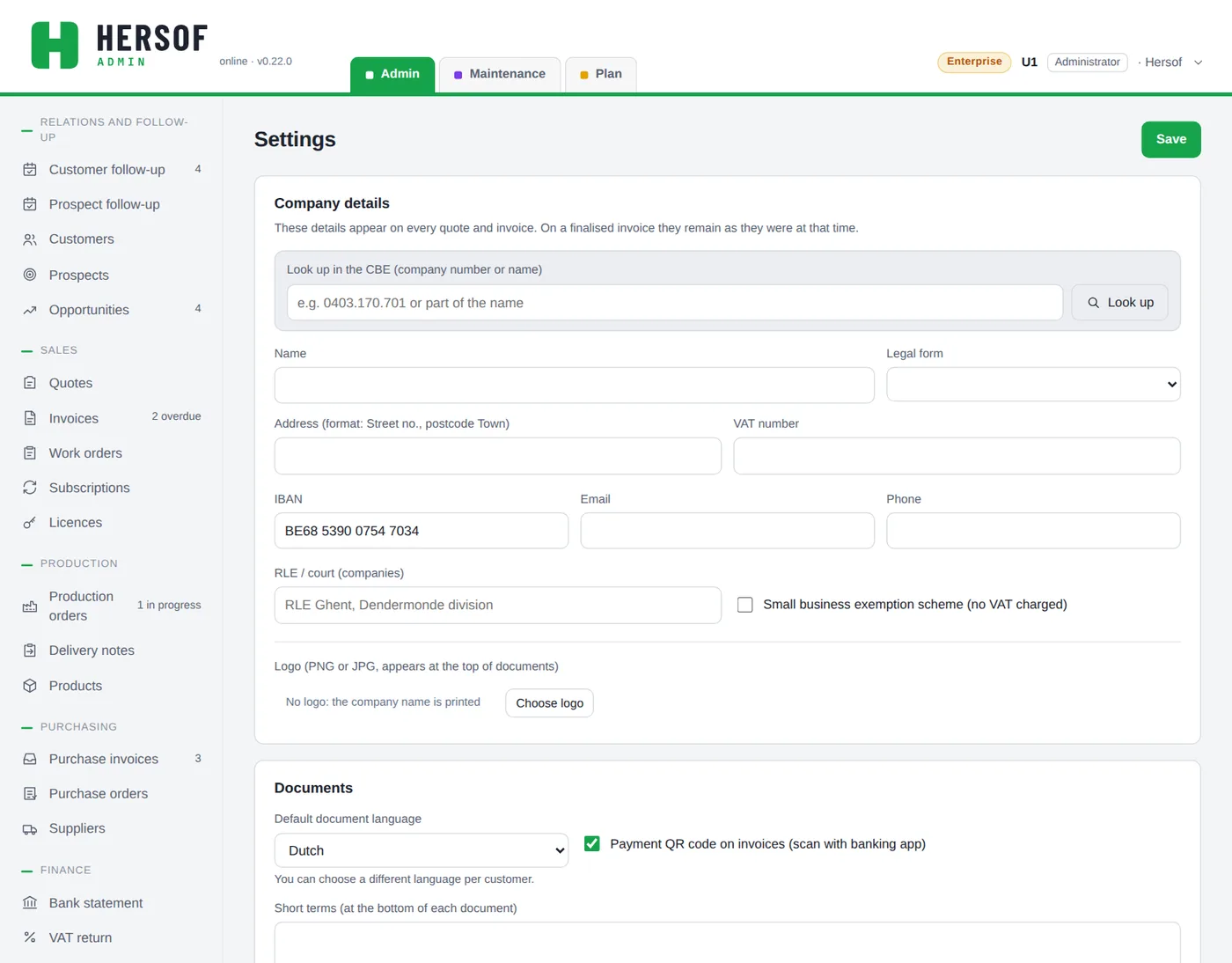
Go to Settings. As long as your company name is empty, the app will remind you: these details appear on every quote and invoice.
- Look up your company in the CBE (company number or name): the name, address and VAT number are filled in.
- Check the legal form, the address (with postcode), the VAT number and your IBAN, and fill in your email and phone. That email address is also where your customers' replies go when you email an invoice. If you fall under the small business exemption scheme, tick that box.
- Choose a logo (PNG or JPG).
- Under Documents: the default language of your documents, the payment QR code (your customer scans it with their banking app) and your short terms and terms and conditions.
- Click Save.
A VAT number, IBAN and an address with postcode are also needed for Peppol (see Peppol).
3 Numbering (if you are switching)
Admin numbers documents itself, with no gaps and no duplicates, e.g. FACT-2026-001, starting again from 1 each year. Have you already invoiced this year with another program? Then go to Settings → Numbering, find the series Invoices and credit notes, click Change and enter the next number. You can do this for every series (quotes, work orders, purchase orders …).
4 Customers and products
- One by one: Customers → new customer → look it up in the CBE. Choose the document language and payment terms for each customer. You create products and services the same way under Products (name, price excl. VAT, unit, VAT rate).
- All at once: Settings → Import from Excel or CSV (see Importing).
- Coming from Hersof Admin offline (the version on your PC)? Then, in an account that is still empty, you can transfer everything with Settings → Switch from Admin offline: choose your backup (.json) there.
5 Your first invoice
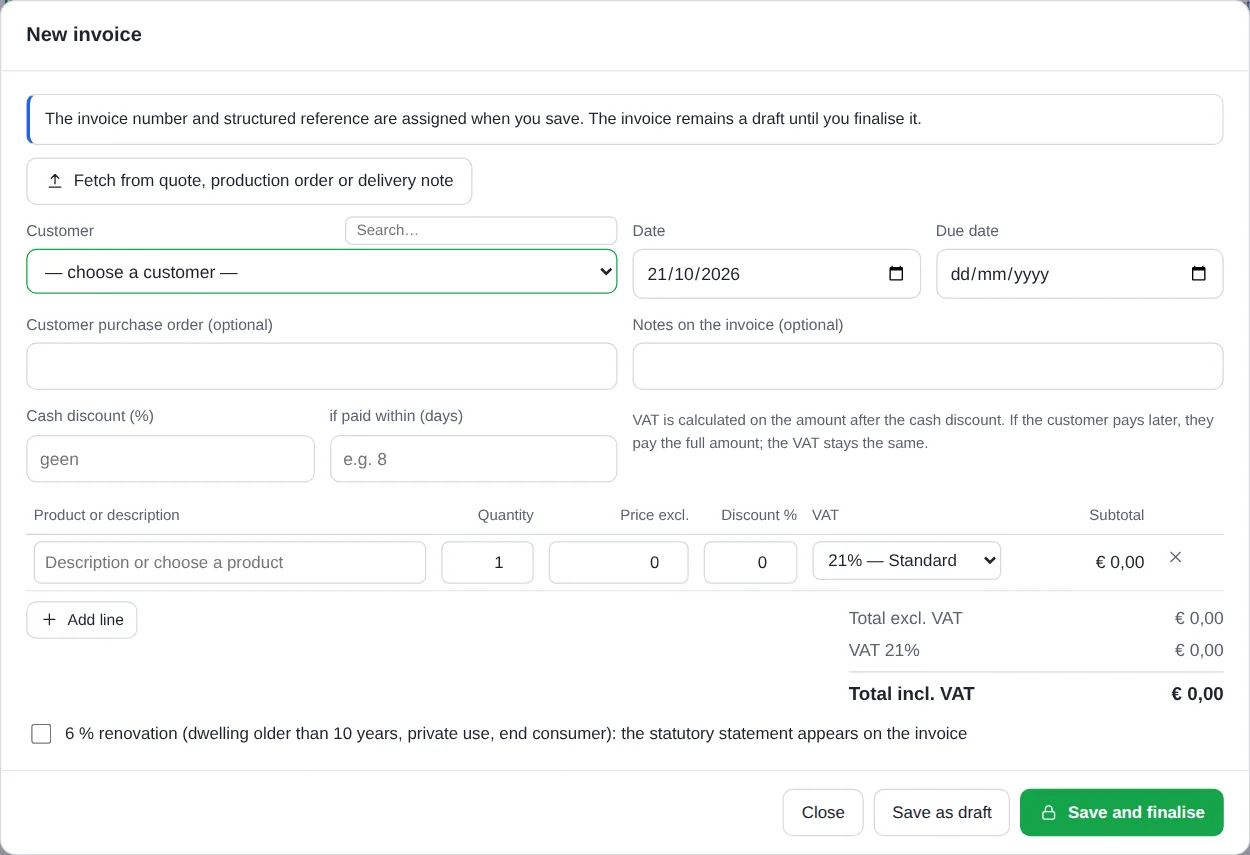
- Go to Invoices → New invoice. Choose the customer: the due date is filled in according to their payment terms.
- Add lines: choose a product (price, unit and VAT come with it) or type a description, with quantity, price, discount and VAT.
- Click Save as draft to continue later, or Save and finalise.
- With Save and finalise you see the invoice as the customer will receive it; click Finalise. The invoice opens straight away with the next step: Send email, or the Peppol file if it has to go via Peppol (Belgian businesses). Only then does Paid become the green button.
A finalised invoice can no longer be changed — that is what the law requires. You correct a mistake with a credit note. Not sure? Make a test print first.
6 Your accountant
Choose one of these (or both):
- Automatic forwarding: in Settings → Forward to your accountant, enter your accountant's email address and tick what they should receive. Every new finalised invoice is then sent to them automatically. Click Send test email to check.
- Export per period: Export for accountant creates one zip with journals, Peppol files and attachments from Team.
Your accountant can also look along with their own login with the access level Viewer (free).
7 Inviting colleagues
Click Users in the menu on the left, enter the name and email address, choose the access level and the language, and click Invite. Give each colleague their own login. See Access levels.
Part 2 — Full manual
Access levels: who can do what?
| Administrator | Staff member | Viewer | |
|---|---|---|---|
| View and print everything | ✓ | ✓ | ✓ |
| Create and edit quotes, invoices, customers, follow-ups … | ✓ | ✓ | – |
| Process bank statements | ✓ | ✓ | – |
| Settings, numbering, importing | ✓ | – | – |
| Deleting, licence activation codes | ✓ | – | – |
| Users and plan | ✓ | – | – |
| Counts towards the plan | yes | yes | no — free, e.g. for the accountant |
A staff member can, however, delete their own follow-up tasks and contact moments. One login works in all Hersof apps; in Maintenance a staff member is called a technician, in Plan a planner.
Adjust it yourself Pro — the administrator can adjust what each access level may do, in Users → What each access level may do → Adjust: e.g. let a staff member delete or change the settings (the menu, numbering and importing stay with the administrator), or let a reader record follow-ups and contact moments. The database checks it itself; the app only shows what is allowed.
The screen
- Menu on the left, by default in groups: Relations and follow-up (Customer follow-up, Prospect follow-up, Customers, Prospects, Opportunities), Sales (Quotes, Invoices, Work orders, Subscriptions, Licences), Production (Production orders, Delivery notes, Products), Purchasing (Purchase invoices, Purchase orders, Suppliers), and at the bottom Settings, Install as app, Users and Sign out. Counters show what needs your attention (e.g. overdue invoices).
- On a phone: at the bottom Follow-up, Customers, Quotes, Invoices and More.
- Keyboard shortcuts: N = new on the current screen, / = search, Esc = close window. If you close a window with unsaved changes, the app asks first.
- A menu item with a padlock is not included in your plan (see Plans). In Solo, such items do not appear in the menu.
- Admin works online only: your invoices and customers are never stored on the device itself. If you come back to the window after a while, the data is refreshed automatically. If a colleague has changed the same thing in the meantime, nothing is overwritten and you get a message.
- An administrator can adapt the menu: see Arranging the menu.
The buttons at the bottom of a window are always in the same place: on the left Delete (red) and related actions, on the right Close and the green main button (e.g. Save). When a document offers many options, print, pdf, email and Peppol are grouped under Send ▾ and the follow-up (create an invoice, production order, delivery note …) under Next step ▾. The logical next step is shown separately with a green border: e.g. Create production order for an approved quote, Create invoice for a delivered delivery note. Marking as paid or changing a status happens straight away; made a mistake? Click Undo in the message.
Settings
Only an administrator can change the settings (or a staff member, if the administrator allows it: see Access levels). Click Save at the top or bottom.
- Company details and logo — see step 2. On a finalised invoice they stay as they were at the time.
- Documents — default language (you can choose a different one per customer), payment QR code, short terms (at the bottom of each document) and terms and conditions (separate page after the document). Per document type you also choose whether 1 or 2 copies are printed; The PDF you email stays a single copy. For production orders you enter a text per copy that appears top right in a frame, e.g. Administration and Workshop; no text = nothing is shown.
- Reminders — late-payment interest, payment term in a reminder to a business, and whether your terms and conditions contain a penalty clause (see Reminders).
- Work orders — hourly rate, default travel (none, fixed amount or per km), Work order with prices (unticked: no prices, subtotals, VAT or total on the printout, the pdf and the email; this applies to new work orders, only the administrator can change it per work order) and a copy (Cc) of every emailed work order to a fixed email address, e.g. your administration.
- Subscriptions and licences — set-up costs, notice period, how many days in advance you invoice, your plans and your licence products. Replace the example plans with your own offering.
- Forward to your accountant — see Export.
- Numbering — the next number for each series (never lower than an existing number).
- Import from Excel or CSV and Switch from Admin offline.
Customer record — choose which documents appear on a customer's record: up to 5 types (invoices, credit notes, quotes, production orders, delivery notes, work orders, subscriptions), each time the latest 10. Default: invoices, quotes, production orders and delivery notes. This applies to everyone in your company.
Tags — with Manage tags you build the list of tags you choose from for a customer or prospect. Give each tag a colour, rename it (the new name appears everywhere at once) or delete it (it disappears from all customers and prospects). Tags that used to be typed freely are added to the list automatically the first time.
Arranging the menu
Every company works differently. An administrator can therefore adapt the menu on the left: go to Settings → Menu and click Arrange menu. The arrangement applies to everyone in your company.
- Groups — tick the groups you want to use. The names come from a fixed list (e.g. Contacts, Sales, Production, Procurement, Accounting), so they are correct in every language. Each name can be chosen only once. A group that contains items can only be unticked once you have moved or hidden those items.
- Moving items — choose for an item the group it should go in.
- Order — use the arrows ↑ and ↓ to put the groups and items in the order you want.
- Hide — not using something? Click Hide. It goes to the list Hidden items, where Restore brings it back.
- New — if a new item is added after an update, it appears in the group New, at the bottom. Put it in a group of your choice.
- Restore default arrangement — puts everything back the way Hersof provides it by default.
Click Save. What someone may not use under their access level or your plan stays hidden for them or shows a padlock, whatever the arrangement says. Settings, Users and Sign out always stay at the bottom. On a phone the bar at the bottom stays as it is; a hidden item does drop out of it. If two administrators change the menu at the same time, nothing is overwritten: the second one gets a message and the latest arrangement.
Arrange my menu — every user can also arrange their own menu: click your name and choose Arrange my menu. It applies to you only. Back to the company default shows the administrator's menu again. If the administrator wants everyone to see the same menu, they untick Users may arrange their own menu in Arrange menu.
Customers
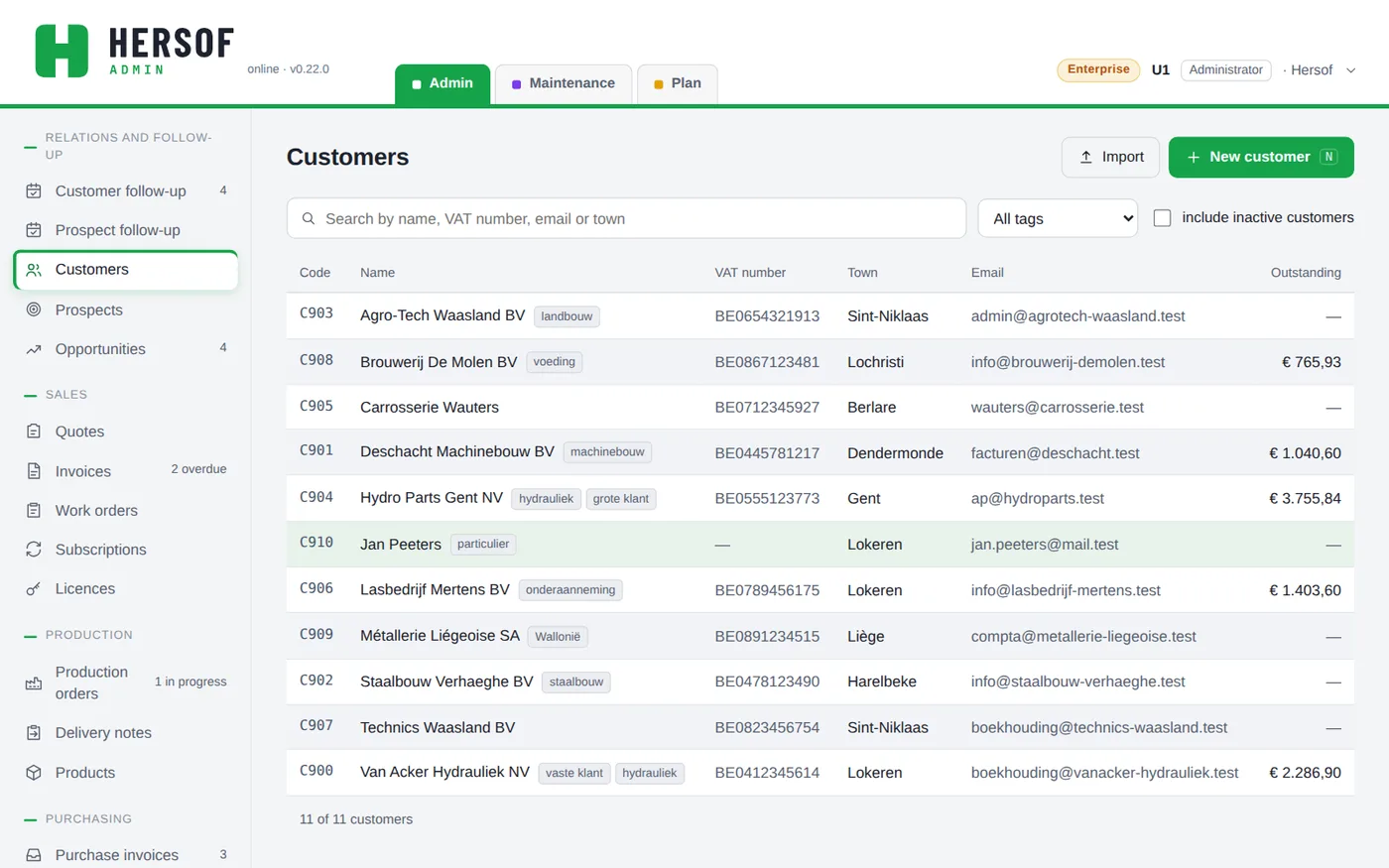
Search by name, filter by tag, or include inactive customers. A customer automatically gets a code (C001, C002 …).
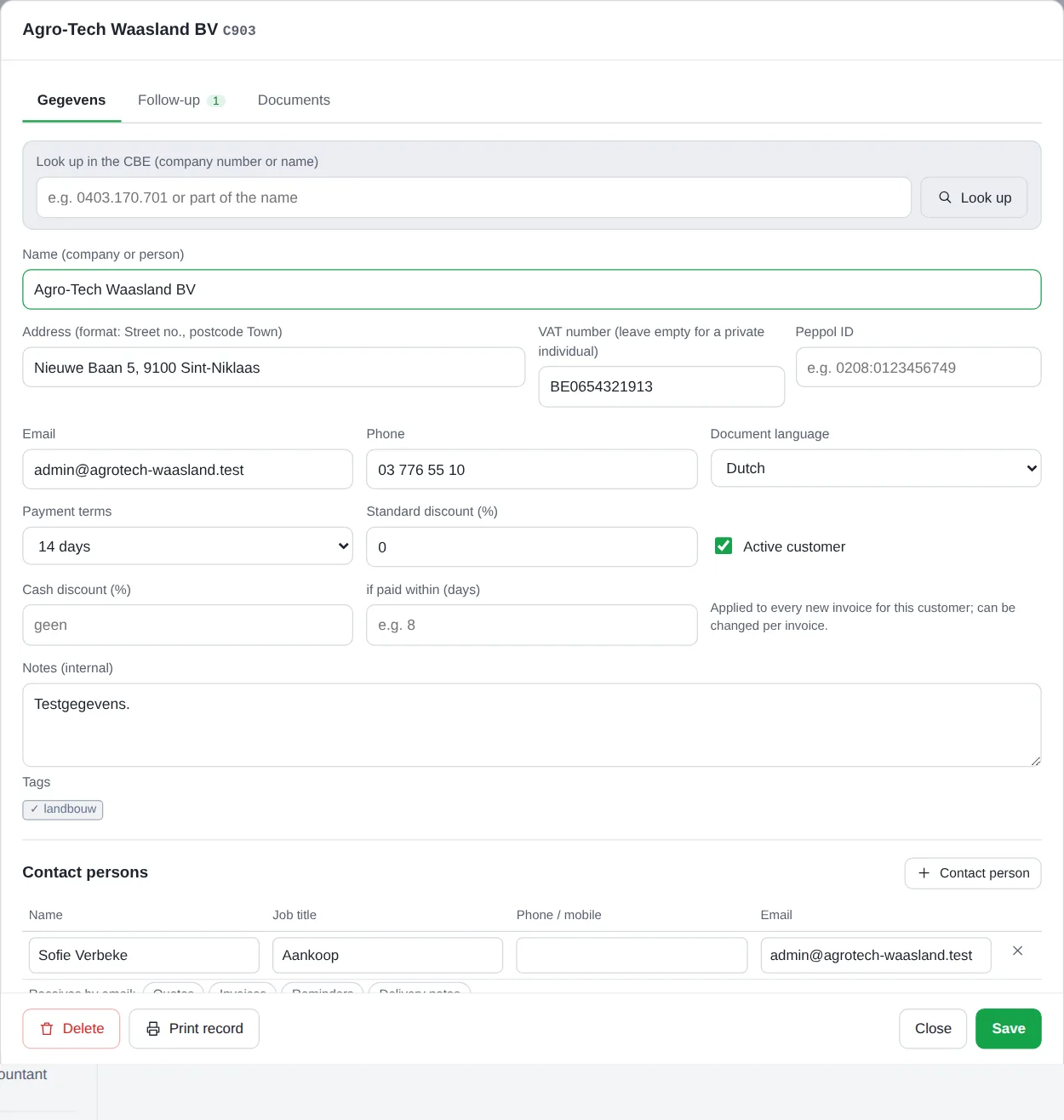
- Look up in the CBE — fills in the name, address and VAT number and shows whether the customer is on Peppol.
- Details — name, legal form (BV, NV, CV, VZW, Comm.V, sole trader, private individual or other; when you look up the customer in the CBE, Admin suggests it from the name), address, VAT number (empty for a private individual), email, phone, document language, payment terms (cash, 14 days, 30 days, 30 or 60 days end of month), standard discount and cash discount (for payment within x days), internal notes and tags. If you choose Private individual, the customer is a consumer: no VAT number needed, no Peppol, and reminders follow the rules for consumers.
- Contact persons — one list (name, position, phone, email). The salutation of your emails comes from the first contact person who receives quotes or invoices, otherwise from the first in the list.
- Open follow-ups, opportunities, subscriptions and licences, the contact moments and sent emails, and the documents the administrator chose (by default the latest 10 invoices, quotes, production orders and delivery notes). Click a document to open it.
- Who receives which email — under each contact person (also for a prospect), click what that person receives by email: Quotes, Order confirmations, Invoices (including credit notes), Reminders, Delivery notes and Work orders. Your choice is kept straight away, even if you move on to the next contact person immediately. When you email a document, the first chosen person is already in To and the others in Cc. E.g. invoices to accounts@customer.com, quotes to the buyer. Reminders without their own choice go to whoever receives the invoices; if nobody is chosen, the email goes to the customer's email address.
- Peppol ID — next to the VAT number. When you look up the company register, it is only filled in if the customer really is in the Peppol list; otherwise you enter it yourself (e.g. 0208:0123456749). An invoice's Peppol file uses this number.
- Back to the record — if you open a document from the record (also a calculation in Hersof Calc or an order in Hersof Plan), Close or Save takes you back to the record.
- Tabs at the top of the record: Details (with the contact persons), Follow-up (open follow-ups, opportunities, contact moments; the number shows the open follow-ups), Documents and Costings. Reopen the same record and you are on the same tab.
- In each document block, + Invoice, + Quote … creates a new document for this customer straight away; after saving you are back on the record.
- At the bottom: Delete, Print record (an A4 with all details, without cost prices), Close and Save.
New customer — after Save, the record stays open on the Documents tab, with + Quote and + Invoice at hand. Is the customer not yet in the list of a quote, invoice, work order, production order or delivery note? Choose + New customer…: after Save, the new customer is already selected. With many customers, search with the Search… box next to Customer.
Deleting a customer — if the customer still has quotes, work orders, production orders, delivery notes, subscriptions or licences, Admin first shows what will be deleted with them. Click Delete everything: the customer and those documents go to the recycle bin together (30 days), and Undo restores everything. Invoices and credit notes are always kept (your accounting needs them): if the customer has one, deleting is not possible and you click Set customer to inactive straight away. A draft invoice you can delete yourself first. The same applies to a supplier (with purchase orders; purchase invoices remain) and a prospect.
End of month: first add the days, then go to the end of that month. An invoice dated 15 January with 30 days end of month is due on 28 (or 29) February.
Products and services
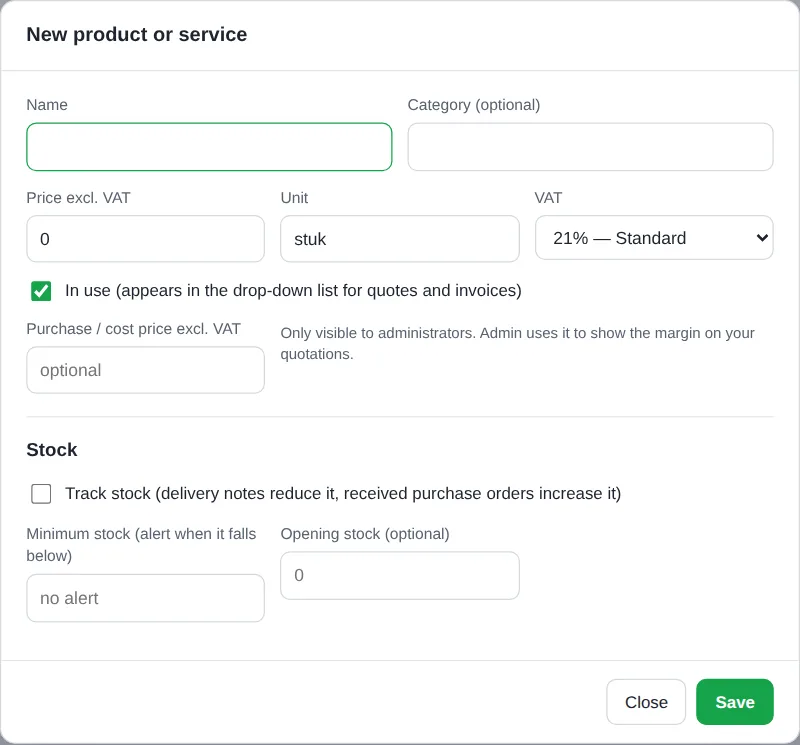
Name, category, price excl. VAT, unit (piece, hour, m² …) and VAT rate: 21 %, 12 %, 6 %, 0 % export, exempt (art. 44), reverse charge for contractors (art. 51 §2), intra-Community supply or service, or the small business exemption scheme. Only products that are in use appear in the drop-down list for quotes and invoices.
Stock Pro — tick Track stock: delivery notes reduce the stock, received purchase orders increase it. With a minimum stock you get an alert when it runs low. You book a stock count or breakage with Adjust stock.
Importing
For the administrator only: Settings → Import from Excel or CSV. Choose Customers, Suppliers or Products and services.
- Simply choose your Excel file (.xlsx, the first sheet) or a CSV. The first row contains the column names. Up to 5,000 rows. Save an old .xls file as .xlsx first.
- The app recognises the columns itself (also in French, English and German); you can adjust the mapping or leave a column unused.
- You see in advance what is new, what will be skipped and what you need to check. Anything that already exists (same VAT number, name or code) is skipped and never overwritten.
Customers and suppliers: name, code, VAT number, email, phone, contact person, address (or street, house number, postcode, town separately), language, payment terms, IBAN, notes. Products: name, code, price excl. VAT, unit, VAT rate, category.
Quotes
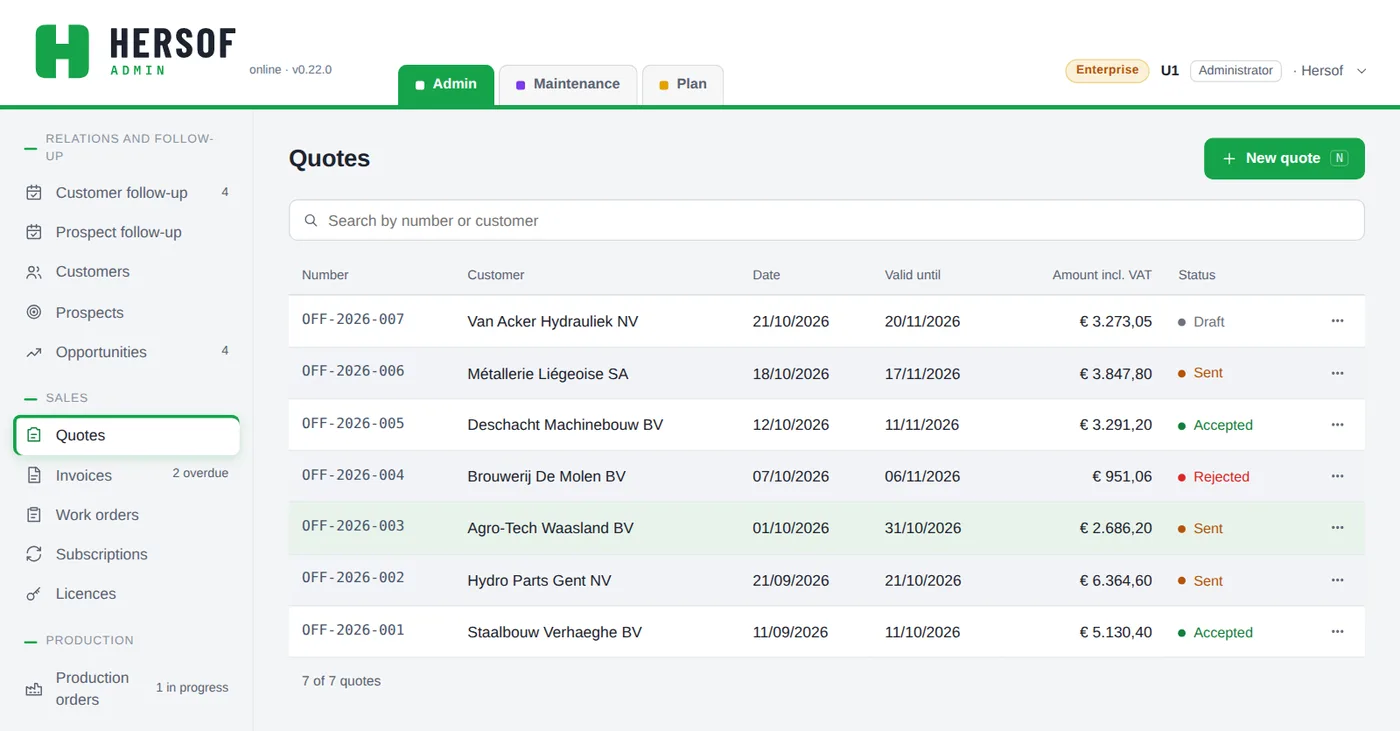
New quote: customer, date, valid until (30 days by default), lines, optionally the delivery and notes. You choose the status yourself: Draft, Sent, Accepted or Rejected; Invoiced is added automatically when you create an invoice from it. Want to confirm the order first? Choose Create order confirmation (see Order confirmations).
Emailing and printing — after Save, the quote stays open: choose Print / PDF or Email. The email window first shows a preview of the pdf as the customer will receive it; then click Send (sender "your company via Hersof", replies come to you) or choose your own email program. A draft quote that has been sent gets the status Sent.
Fixed text and extra info — in Settings → Documents you enter a fixed text for the bottom of every quote (e.g. Quote only valid for the complete order). Per quote you can add extra info (e.g. Delivery time depends on the supply of material). Each appears in a box below the totals. The totals and the boxes are always at the bottom of the last page: first the extra info, the fixed text at the very bottom.
Price per quantity — if you create the quote from Hersof Calc with the price per quantity, each quantity gets its own line with the same description and the unit price, together with the ordered line from small to large. Only the ordered line has an amount; the others (for information) are not included in the total, can simply be changed or deleted, and do not go to an invoice, production order or delivery note.
The next step is always separate, at the bottom right: for a draft Email, for a sent quote Customer agrees (the quote is set to Accepted straight away, with Undo), for an accepted quote Create invoice, or Create production order if there is something to produce.
Via a quote's ⋯ menu (in the same groups as at the bottom of the window: Send, Next step, then Delete separately):
- Create invoice from this quote — the invoice mentions the quote; earlier advance invoices are deducted.
- Advance invoice — for a sent or accepted quote (30 % by default).
- Create production order and Create delivery note Team.
- Schedule follow-up, Create opportunity, Copy to new quote, Print / PDF.
Order confirmations from Starter
With an order confirmation you confirm an order to your customer: what they ordered, with the prices, the expected delivery date and their reference (Your ref.) or purchase order number (Your purchase order). You find them in the menu under Sales, next to the quotes. They get a number in the OB series.
- From a quote — open the quote and choose Next step → Create order confirmation. Customer, lines and Your ref. are copied. If the quote was still a draft or sent, it automatically becomes Accepted when you save.
- Without a quote — did the order come in directly (phone, email, the customer's purchase order)? In Order confirmations, click New order confirmation. If you do pick a quote, its lines are copied.
- Fill in the expected delivery date, Your purchase order and notes on the order confirmation if needed, and click Save.
- Click Email (or Print / PDF). The email goes to the contact person who receives Order confirmations.
The next step has a green border among the buttons: Create production order, Create delivery note or Create invoice. Whatever you create takes over the lines, Your ref. and Your purchase order; the window shows which production orders and delivery notes already belong to it. Statuses: Draft, Sent and Cancelled; use Ongoing, Invoiced and All to find them. An order is never invoiced twice, not even via its quote or production order.
Lines: unit, discount and references
This applies to quotes, order confirmations, invoices, production orders and delivery notes.
- Unit per line — choose in the Unit column: piece, hour, metre, m², m³, kg, litre, day or lump sum. Is your unit not in the list? Choose Other… and type it. If you pick a product, its unit comes along. On the document the unit appears in the customer's language, in the Peppol file with the official code.
- Discount — the Discount column only appears when there is a discount (e.g. the customer's standard discount). To give a line a discount, click + Discount. On the printout and the pdf too, the column only appears when there is a discount.
- Your ref. and Your purchase order — your customer's reference and purchase order number (on a quote only Your ref.). They appear at the top of the document, carry over to the next document and you can search for them. In the Peppol file of an invoice, Your ref. becomes the buyer reference and Your purchase order the order reference, so your customer's accounts department recognises the invoice right away.
Invoices
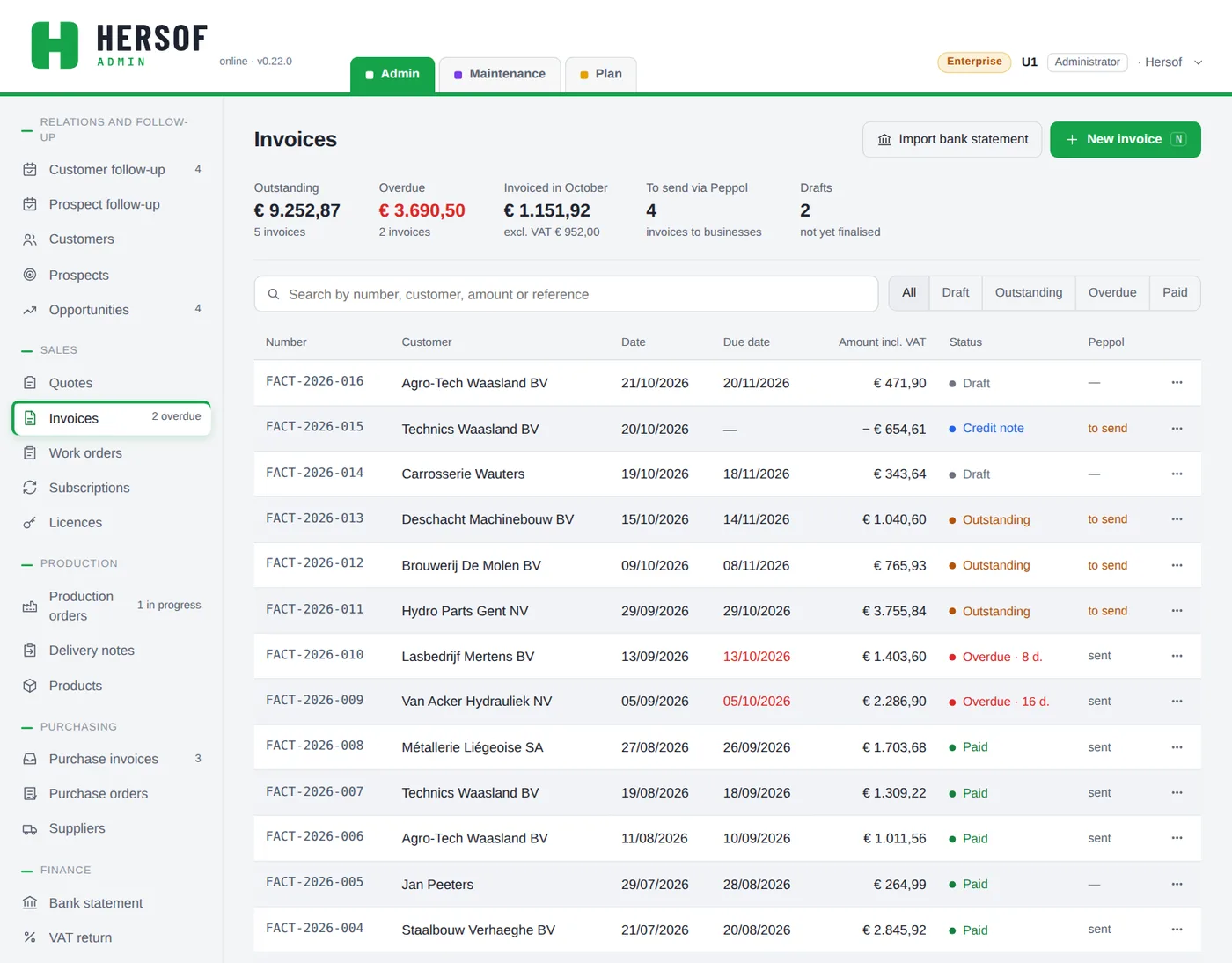
At the top you see what is outstanding, what is overdue, what you invoiced this month, what still has to be sent via Peppol and how many drafts there are. Filter on Draft, Outstanding, Overdue or Paid.
Invoice from a quote, production order or delivery note
In New invoice, click Fetch from quote, production order or delivery note. You see everything that is not yet invoiced, for the chosen customer (or all customers), filterable by type. Tick one or more documents of the same customer and click Create invoice: customer, lines (without the prices per quantity for information) and the customer's purchase order number are copied; for a delivery note, Delivery note … of … goes into the notes. The quote and production order of the same order are also marked as invoiced (and vice versa), so the same delivery is never invoiced twice. Choosing a delivery note together with its own production order is therefore not possible. If you delete the draft, all documents are open again. Advance invoices on the quote are deducted.
Draft and final
- An invoice remains a draft until you finalise it. Drafts do not count in the VAT return or the export.
- Finalise locks the content: after that, only the payment status, reminders, the Peppol status and internal notes can still change. That is what the law requires.
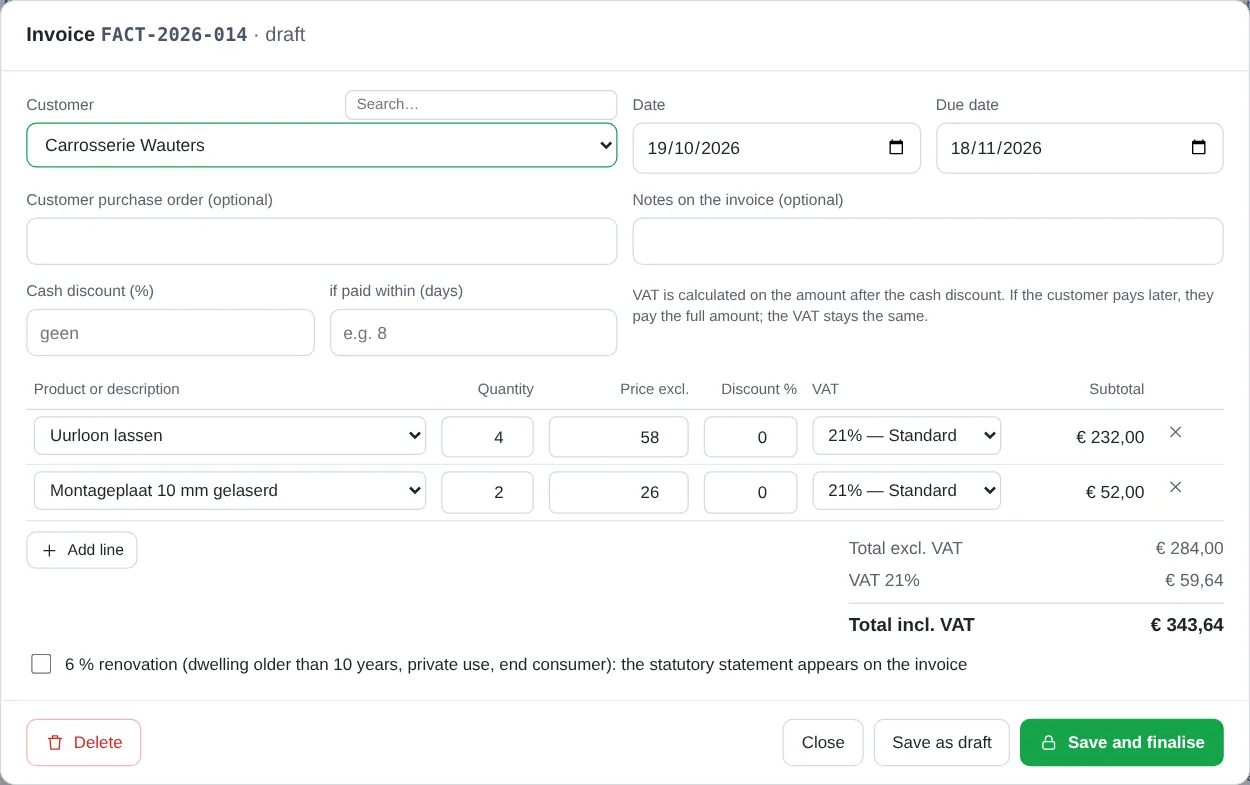
- Check — with Save and finalise (or Finalise in the menu), the invoice is first saved as a draft and you see it as the customer will receive it. Choose Back to edit or Finalise: that is the confirmation. The invoice then opens with the next step, Send email or Peppol file; once it has been sent, Paid becomes the green button. If your account number is missing (Settings → Company details), you get a warning; the structured reference is still on the invoice, but without a payment QR.
- Only the administrator can delete a draft, and only if it has the last number of the year (otherwise there would be a gap).
Special items on an invoice
- Your ref. and Your purchase order — your customer's reference and purchase order number (taken from the quote, order confirmation, production order or delivery note when you create the invoice from them). They are also included in the Peppol file (see Lines).
- Cash discount — discount for payment within x days. VAT is calculated on the amount after discount; the invoice states If paid on time. When you mark the invoice as paid, the app asks whether the discount was used.
- 6 % renovation — tick this for a dwelling older than 10 years (private use, end consumer): the statutory statement then appears on the invoice.
Printing and emailing
- Print / PDF — opens the invoice in a new window (allow pop-ups for hersof.be). For a draft you choose Test print (marked draft — not a valid invoice) or Finalise and print.
- Email — opens the email window: Hersof Admin sends the invoice itself, with the PDF and the Peppol file attached. See Emailing an invoice.
Emailing an invoice
You email a final invoice or credit note straight from Hersof Admin. You don't need an email program and the attachments are added automatically.
- Open the invoice and click Email.
- To is already filled in with the customer's email address. Separate several addresses with a comma. Under Cc you can add someone else, for example your customer's accounts department (at most 5 addresses in total).
- The subject and text are ready in the customer's language, with the amount, due date, your account number and the structured payment reference. Change whatever you like.
- Leave Send me a copy ticked if you want a copy in your own mailbox. Admin remembers your choice.
- Click Send.
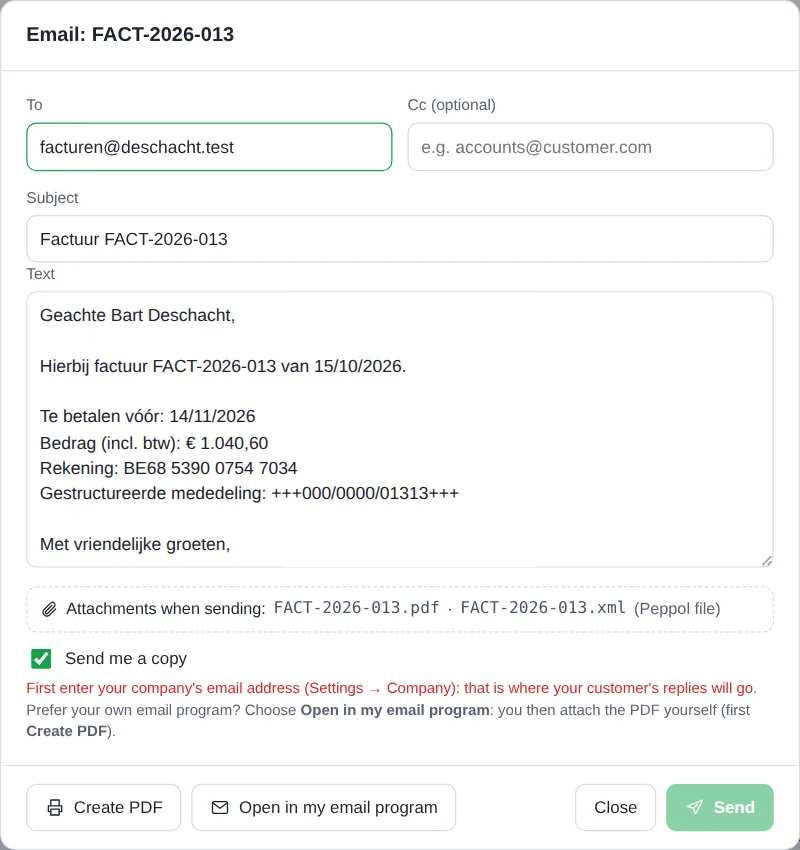
What does your customer receive?
- An email from "your company via Hersof", with the invoice PDF and the Peppol file (UBL) attached.
- If your customer clicks Reply, the reply goes to your company's email address (Settings → Company), not to Hersof.
How do you know the email has gone? You immediately see the message "… sent to …". After that, the invoice shows By email: sent on … to …, and the email also appears among the contact moments on the customer's record. If it fails (for example no connection), Admin tells you straight away and the window stays open so you can try again.
Prefer your own email program? Then click Open in my email program. Outlook, Gmail … opens with the same text. You attach the PDF yourself: first click Create PDF and save the file. The email is then also in your own Sent items.
Enter your company's email address in Settings → Company. Without it, Admin cannot send, because your customer must be able to reply. Users with the reader access level can only use their own email program.
An email with a PDF does not replace Peppol: since 2026, an invoice to a Belgian business must go through Peppol (see Peppol). The email is an extra service for your customer.
Statuses: Draft, Outstanding, Overdue (due date passed, with the number of days), Paid, Credited, Credit note.
Peppol
Since 2026, Belgian businesses invoice each other via Peppol. Admin indicates by itself which invoices must go via Peppol (customer with a Belgian VAT number, invoice dated 1/1/2026 or later) and shows them in the Peppol column as to send.
- Open the finalised invoice and choose Download Peppol file. Admin first checks that everything is correct (VAT numbers, address with postcode, IBAN).
- The file (factuurnummer.xml, named after the invoice number) is in your Downloads folder. Upload it to your Peppol service.
- Click Sent via Peppol.
You import Peppol invoices received from suppliers under Purchase invoices.
Credit notes
You correct a mistake on a finalised invoice with Create credit note (invoice menu): choose the date, the portion of the invoice (100 % by default) and the reason. The credit note gets its own number in the same series and starts as a draft: check it and finalise it. At 100 % the invoice becomes Credited.
Payments and reminders
Mark an invoice as Paid (or Mark as unpaid), or let the bank statement do it (see Bank statement).
For an overdue invoice the button Reminder appears, followed by 2nd reminder and Formal notice. Choose whether it concerns a consumer or a business, by email or by letter, the new payment date, and whether you charge interest and compensation. Admin follows the legal rules: a first reminder to a consumer is free, with at least 14 days to pay; you can only charge a consumer costs after that, and only if your terms and conditions contain a penalty clause. Then choose Record only, Letter / PDF or Via my email program.
Bank statement
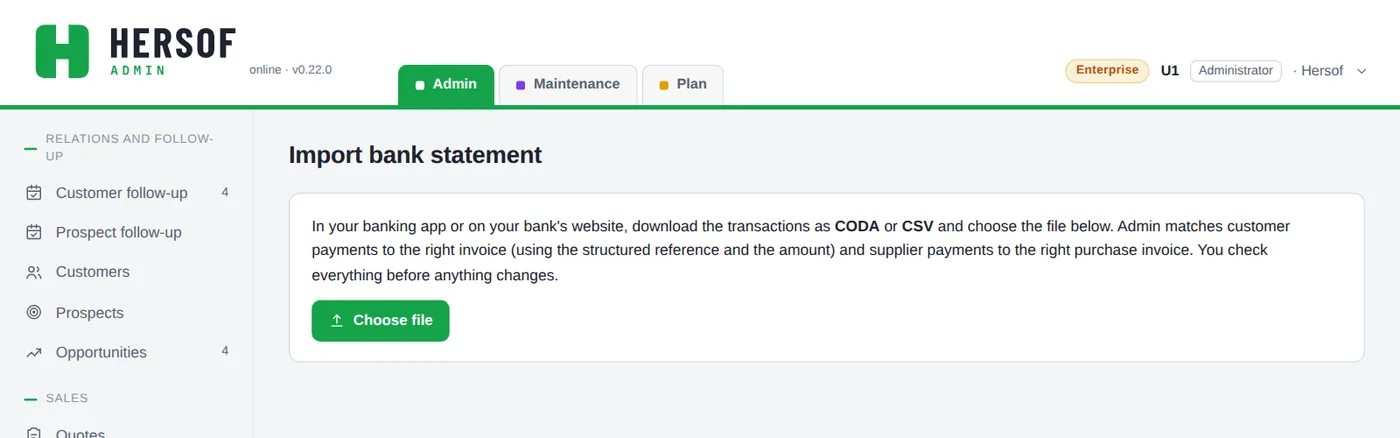
Download a statement from your bank (CODA or CSV) and select it under Bank statement. For each payment Admin looks for the right invoice: by structured reference and amount, by invoice number and amount, or by the amount after cash discount. Outgoing payments are matched to your purchase invoices. Anything that is not certain is marked check this. Tick what is correct and click Mark selected as paid; the bank's date becomes the payment date.
Follow-up and contact moments
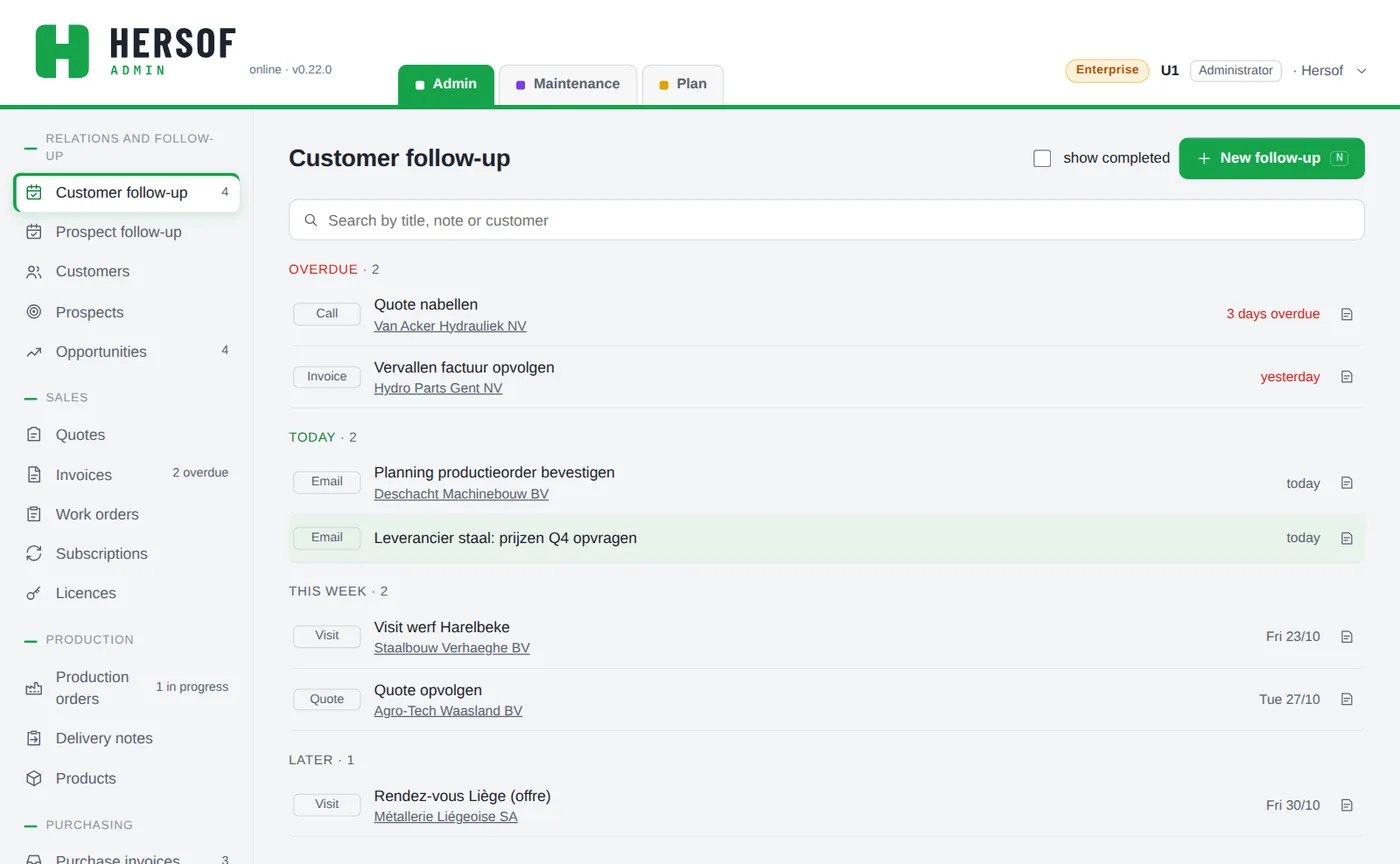
Follow-up tasks are your to-dos per customer: Overdue, Today, This week, Later. A new task: what needs to be done, the type (call, email, visit, quote, invoice …), for which customer or prospect, when (today, tomorrow, in 3 days, 1 or 2 weeks, or a date) and for whom.
Click a task to handle it: you see the contact details and the recent history. Choose Completed, Done + next step, Not reached (for calls), Postpone or Edit. Clicked by mistake? Click Undo straight away.
- Postpone and Not reached — Tomorrow, In 3 days … act straight away (with Undo). For another day, pick a date.
- Done + next step — the choices follow the type: for an invoice Send reminder and Open invoice, for a quote Customer agrees and Open quote. Plan a new follow-up already gets a title. In the recent history, click a quote or invoice to open it.
- Delete — via Edit (there is no bin icon in the list any more: rather tick a follow-up off).
You record a contact moment (phone, email, visit, note) on the customer, with what was discussed and a next follow-up straight away.
Customer follow-up and Prospect follow-up are two separate screens in the menu, each with its own counter. A follow-up without a customer or prospect is listed with the customers. When a prospect becomes a customer, their follow-ups move along automatically.
Prospects and opportunities from Team
Prospects — companies that are not yet customers: name (via the CBE), sector, contact details, status (new, contacted, quote sent, negotiation, lost), source, contact persons and appointments. Does a prospect become a customer? Click Convert to customer: contact persons, reports and follow-ups are kept.
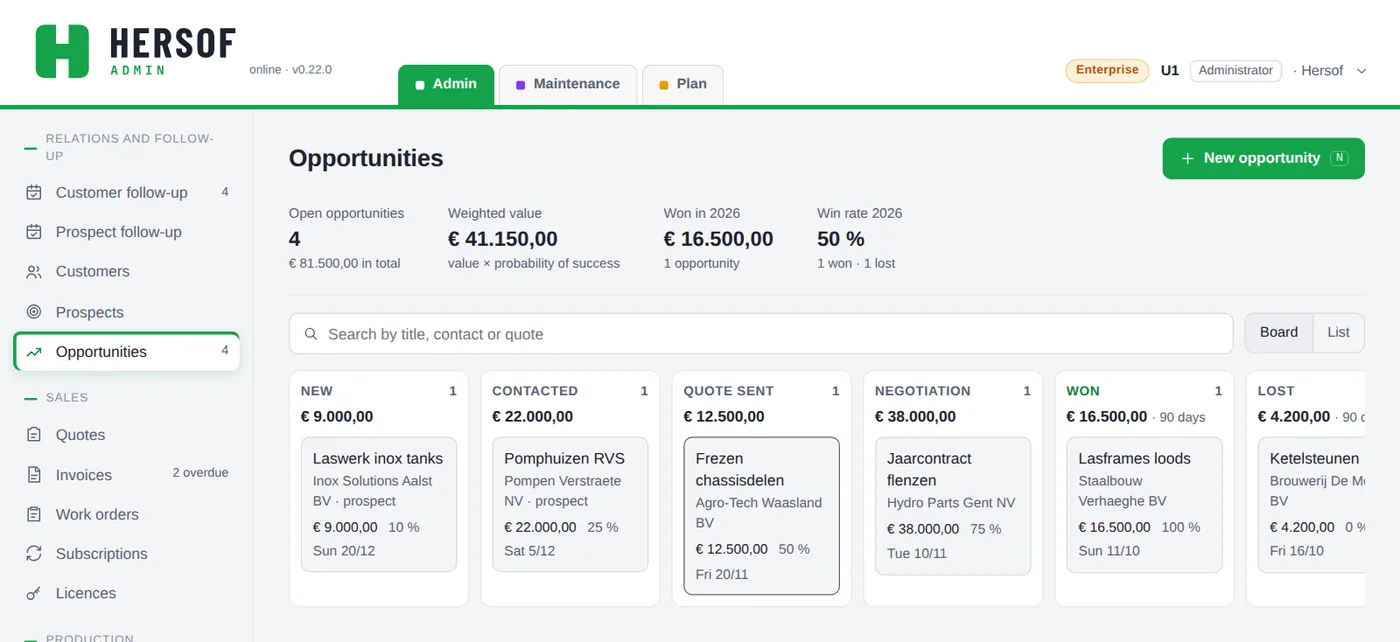
Opportunities — what you hope to sell, with value, stage and probability. View them as a board (drag a card to another stage) or as a list. At the top: open opportunities, weighted value, won this year and your success rate. If you link a quote, the stage follows automatically (sent → quote, accepted → won, rejected → lost).
Work orders
For work at the customer's premises: hours (date, who, from–to, hourly rate), materials and travel. Status: Open (work in progress), Completed (to invoice), Invoiced. With Invoice from work orders you create one invoice from several work orders for the same customer.
The natural order — a new work order stays open after Save and the green button always shows the next step: Have it signed → Email → Create invoice (once the work order is completed).
- Have it signed — on a tablet, phone or with the mouse. Enter the name of the signatory (the contact person is already filled in) and let the customer sign in the box with a finger or a pen; Clear starts over. Click Sign: the date and time are added automatically and the signature appears on the printout and the pdf. A signed work order is locked. If you still want to change its content, Admin asks first: the signature is removed and you have it signed again.
- Emailing — Email sends the work order as a pdf to the contact person who receives Work orders (otherwise to the customer's email address), also from a tablet or phone. If Settings → Work orders has a Cc address, that address receives a copy.
- With or without prices — if Work order with prices is unticked (Settings → Work orders), the work order has no prices, subtotals, VAT or total: not on the printout, not in the pdf and not in the email. The administrator can set it differently per work order.
- Printing — prefer a signature on paper? Print the work order: it has boxes for the customer and the person who did the work.
Subscriptions and licences Pro
Subscriptions are recurring invoices: plan, description, price per month, quarter or year, start date, automatic renewal and notice period. Admin always invoices in advance, but never by itself: the screen shows what is due to be invoiced soon, and you click Create invoices. Via the menu: Invoice now, Other plan (the difference is invoiced pro rata), Cancel and Withdraw cancellation.
Licences are one-off sales of software with an activation code: customer, product, version, licence name, activation code (only visible to the administrator; New code creates one), date and price. Click Save and create invoice.
Purchasing
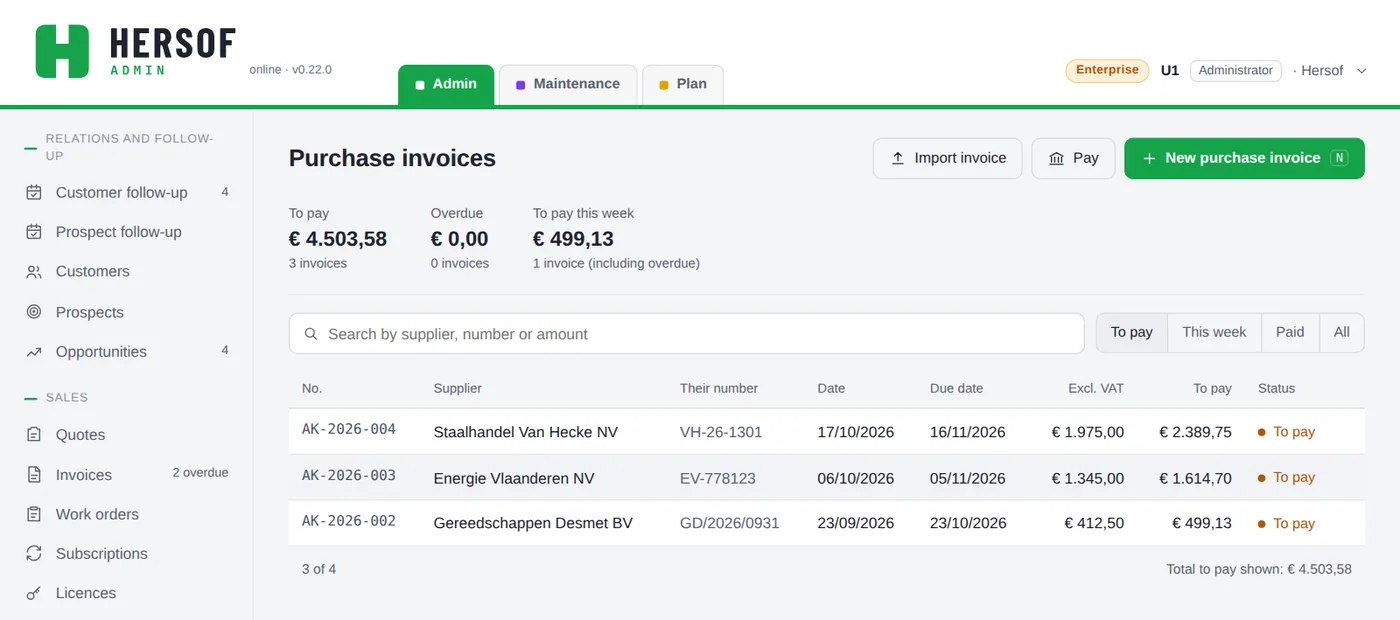
- Importing purchase invoices PDF and photo: Pro — click Import invoice or drag the files onto the screen: one or more PDFs, Peppol files (.xml) or photos. A Peppol file, or a PDF containing a Peppol or Factur-X file, is saved straight away (a new supplier is created, duplicates are skipped). For an ordinary PDF, Admin reads the supplier (by VAT or account number; a new supplier with name and address from the KBO), the invoice number, the date and due date, the amounts per VAT rate (including reverse charge) and the structured payment reference. The window opens with the PDF alongside; whatever Admin could not read with certainty is shown in yellow. Check it and click Save; with several PDFs, the next one opens automatically. Admin cannot read a photo: the window opens with the photo alongside. If you add a PDF to a new, empty purchase invoice, it is filled in straight away as well.
- Purchase invoice by hand — New purchase invoice: supplier, invoice number, date, due date, type (box 81, 82 or 83 of the VAT return), deductible portion of the VAT (e.g. 50 % for a car), the amounts, the payment reference, the status and attachments (PDF, photo, up to 15 MB). The due date is filled in automatically (invoice date + the term of the supplier's previous invoice, or 30 days). At first you only see the 21 % box; the other rates open with Other rates ▸, and by themselves for a supplier outside Belgium or when they are already filled in.
- Paid yourself (e.g. in your banking app) — open the purchase invoice and click Paid, with Undo.
- Suppliers — like customers, with IBAN and the language of your purchase orders.
- Purchase orders from Team — what you order from a supplier: Draft → Sent → Received (or Cancelled). When set to Received, the stock goes up.
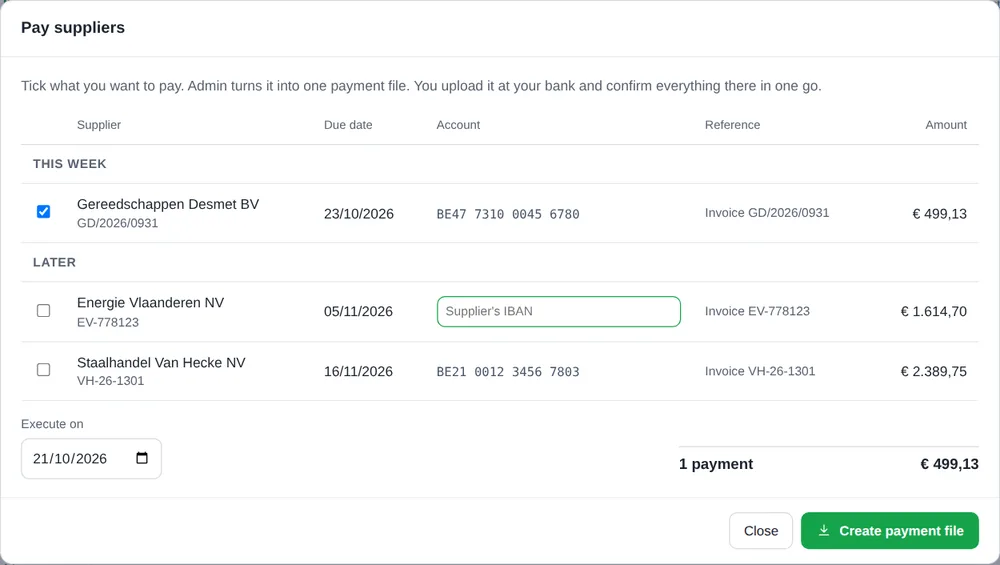
- Pay Pro — the figure To pay this week and the This week button show what is overdue or due this week. Click Pay: what is overdue and due this week is already ticked; tick or untick as you like. If a supplier's account number is missing, type it in: it is saved with the supplier. Click Create payment file: Admin creates one SEPA payment file (betalingen-date.xml) that you upload at your bank (Upload file or Import SEPA file under transfers); there you confirm everything in one go. The structured payment reference is included. The invoices are marked in payment file, so you never pay twice. Marking as paid: with Mark as paid now, or automatically when you import the bank statement. Your company's account number (Settings → Company details) must be filled in.
VAT return from Team
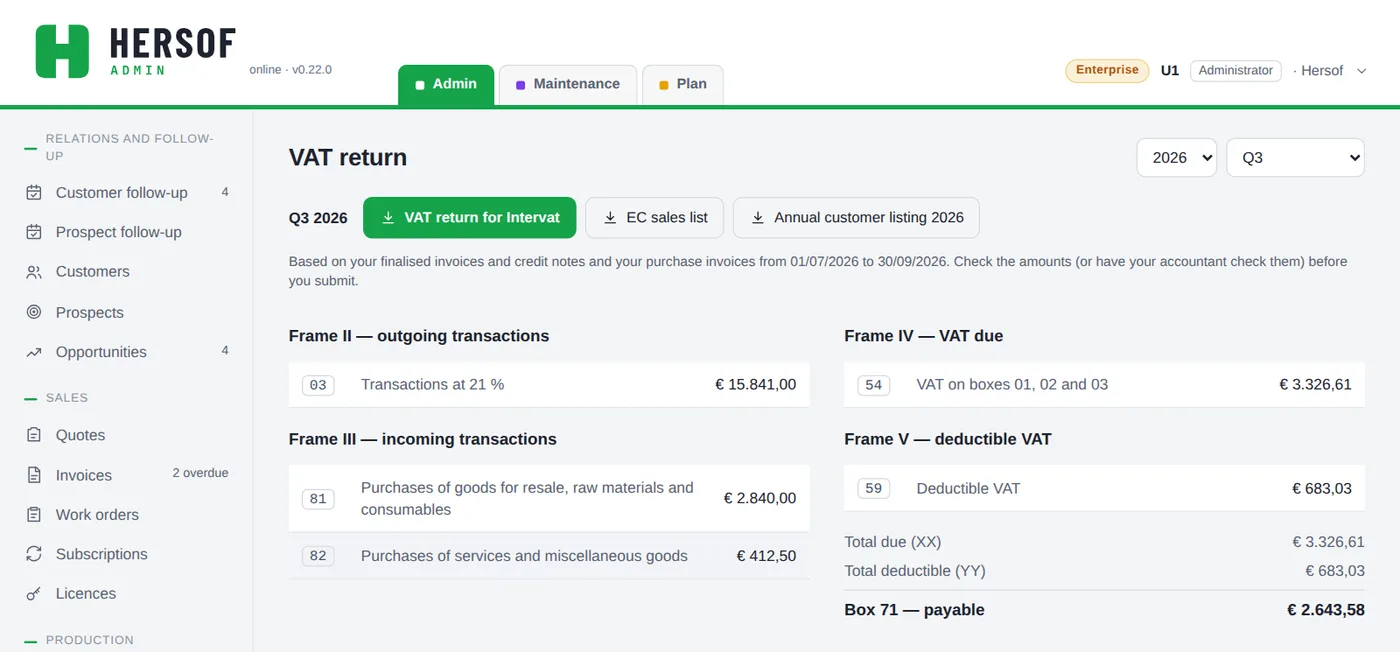
Choose the year and the quarter (or the month). You see the boxes of the return with the balance (box 71 payable or box 72 refundable). The buttons create the files for Intervat: the VAT return, the EC sales list and the annual customer listing. The window explains how to submit them. Draft invoices do not count; Admin warns you if there are any left.
Export and forwarding to your accountant
Export for accountant — choose a year, quarter or month and click Download zip. It contains: the sales and purchase journals (CSV, opens in Excel), the attachments of your purchase invoices, a Peppol file for each invoice and credit note, for a quarter or month also the Intervat files (with the VAT return, from Team), and a LEES-MIJ (read-me) file.
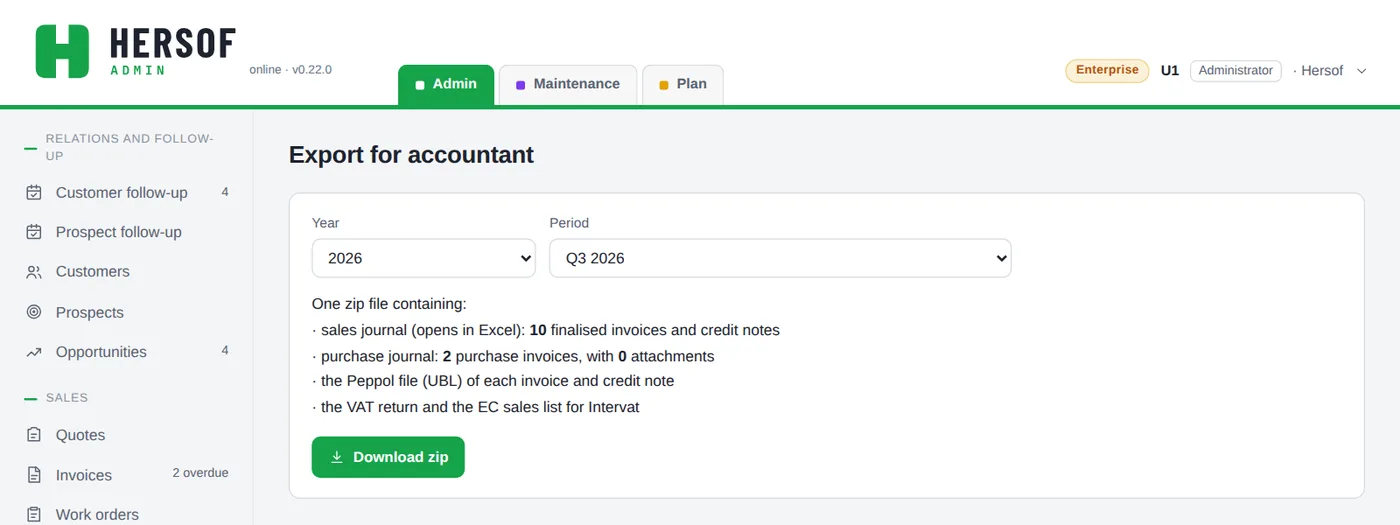
Automatic forwarding — in Settings → Forward to your accountant: every new finalised sales invoice and credit note (with PDF and Peppol file) and, if you tick it, every purchase invoice with attachments is emailed to your accountant. Each document is sent only once; if it fails, Admin tries again. For each document you see whether and when it was forwarded, with Send again. Only documents created after you turn this on are forwarded; you hand over older ones via the export.
Production orders and delivery notes Team and stock Pro
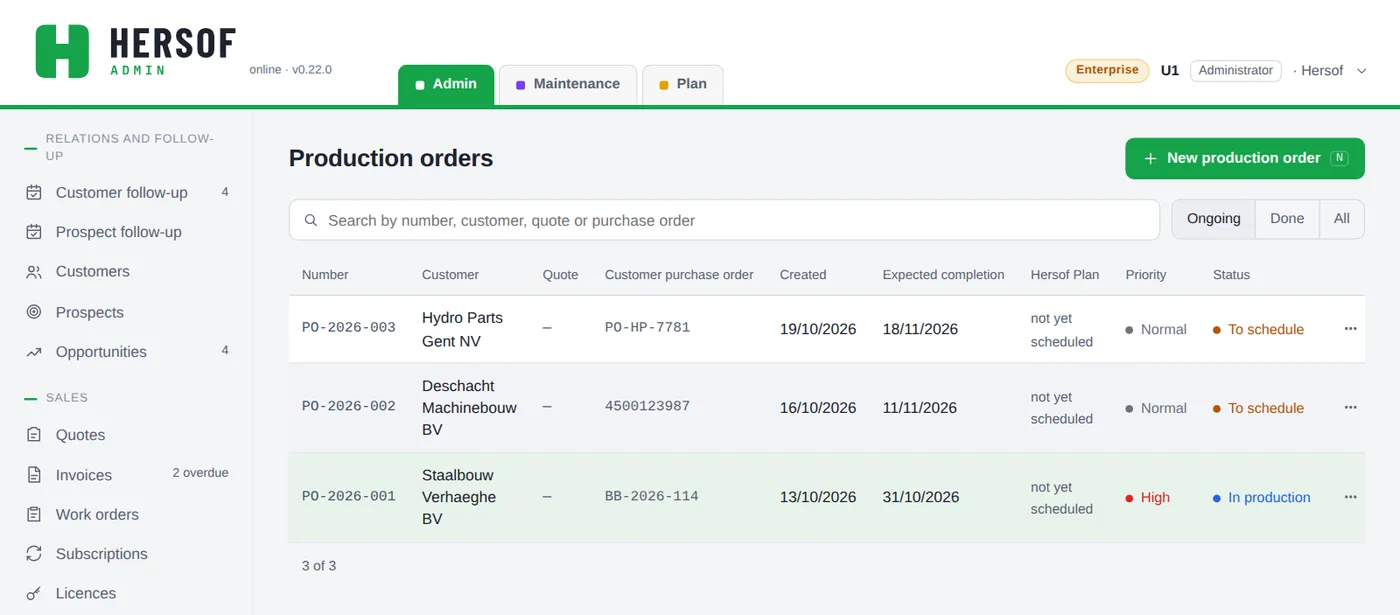
- Production orders — create one from a quote, an order confirmation or separately: expected date, Your ref. and Your purchase order, priority, instructions for the shop floor. Status: To schedule → In production → Done (or Cancelled). At the bottom the next step is separate (Start production, Done, Create delivery note, then Create invoice); the others are in Next step ▾, Delete is red on the left. A new production order stays open after Save.
- Delivery notes — status Ready for delivery or Ready for collection (the customer collects it), then Delivered or Collected (or Not delivered). The green button always shows the next step. When set to Delivered or Collected, the stock of the products goes down, once (going from Delivered to Collected changes nothing more). An earlier delivery note that was Scheduled is now Ready for delivery. With Create invoice you invoice the delivery note (see Invoices). On paper the delivery note has no prices (description, quantity and unit), shows Your ref. and Your purchase order, and has a Received by box at the bottom for the name, date and signature of the person receiving the goods. After Save the window stays open, so you can print, email or invoice right away.
- Stock — see Products and services.
Together with Hersof Plan Team
Do you also use Hersof Plan? Then production orders get a Hersof Plan column showing the planned weeks, and as long as an order is not scheduled, Schedule in Hersof Plan is the recommended step at the bottom of the production order (afterwards, the link Open in Hersof Plan). The status then follows automatically: when an operation is finished in Plan, the order becomes In production; when the whole order is finished, it becomes Done.
Recycle bin and your data
Deleted something by mistake? Don't panic: it stays in the recycle bin for 30 days. Only the administrator sees the recycle bin, in Settings → Recycle bin and your data.
Delete straight away, with Undo — as administrator you delete a quote, customer, product, follow-up, purchase invoice … without a question first; in the message … deleted, click Undo to put it back. When a lot disappears at once (a prospect with its appointments, a draft invoice, a delivery note with stock), Admin asks first.
- Restore — one click brings it back, exactly as it was (number, date …), together with whatever was removed with it (e.g. the operations of an order). Whatever exists again is never overwritten; if something fails, you see why.
- For each deletion you see when, by whom and until when it stays in the recycle bin. After 30 days it is gone for good, photos and attachments included.
- Download my data — one zip file with all your data from this app (opens in Excel) and the photos, attachments and documents. That way you always have your own copy. Keep it in a safe place. If your last download is more than 3 months ago, the administrator gets a reminder.
Language, appearance and installing
- Click your name at the top right: appearance (light, dark or same as your device), language (Nederlands, Français, English, Deutsch), Info for support and Sign out. These choices apply in all Hersof apps. The language of your documents follows the customer, not your screen.
- Install as app (menu on the left) — its own window and icon. In Edge or Chrome with one click; on an iPhone via the Share button → Add to Home Screen.
- Updates — Hersof updates itself, on the computer, tablet and phone. When a new version is available, the app loads it automatically as soon as nothing is open (no window, nothing being typed); you then briefly see Hersof has been updated to v…. If you are still busy, a bar appears: save your work and tap Update. If your version is too old to keep working with, you see Hersof needs to be updated: tap Update; your data is safe in Hersof. If that does not work, close the app completely and open it again.
Plans and trial period
| Solo | Starter | Team | Pro | Enterprise | |
|---|---|---|---|---|---|
| Administrators + staff members | 1 | 3 | 10 | 25 | 50 |
| Viewers | unlimited, free | ||||
| Quotes, invoices, Peppol, customers, products | ✓ | ✓ | ✓ | ✓ | ✓ |
| Order confirmations | – | ✓ | ✓ | ✓ | ✓ |
| Costing sheet per quotation line (cost price and margin) | – | ✓ | ✓ | ✓ | ✓ |
| Follow-up tasks, bank statements and reminders | ✓ | ✓ | ✓ | ✓ | ✓ |
| Prospects and opportunities | – | – | ✓ | ✓ | ✓ |
| Work orders | ✓ | ✓ | ✓ | ✓ | ✓ |
| Suppliers and purchase invoices | ✓ | ✓ | ✓ | ✓ | ✓ |
| Purchase orders to suppliers | – | – | ✓ | ✓ | ✓ |
| VAT return, EC sales list and annual customer listing | – | – | ✓ | ✓ | ✓ |
| Export for the accountant | ✓ | ✓ | ✓ | ✓ | ✓ |
| Production orders, delivery notes, integration with Plan | – | – | ✓ | ✓ | ✓ |
| Stock per product | – | – | – | ✓ | ✓ |
| Subscriptions and licences | – | – | – | ✓ | ✓ |
| Purchase invoices read automatically (PDF and photo) | – | – | – | ✓ | ✓ |
| Payments with a SEPA file | – | – | – | ✓ | ✓ |
| Adjust yourself what each access level may do | – | – | – | ✓ | ✓ |
Prices are on the Hersof Admin page. The administrator sees the plan via the label next to their name. A feature outside the plan has a padlock; anything you have already created with it stays visible, but you cannot add new items.
Solo — for people who work on their own (1 user; viewers such as your accountant stay free): quotes, invoices, work orders, purchase invoices, bank and the export for your accountant. What is not in Solo does not appear in the menu, so you only see what you use. Need more, such as colleagues, order confirmations or production? You can always switch to Starter or Team.
Trial period — for the first 30 days you work with all the Pro features. From 7 days before the end, the administrator sees a message at the top. After that you simply carry on with your plan.
Need help?
Email herwig@hersof.be. Something going wrong? Click your name → Info for support, copy what it shows and paste it into your email. Errors in the app are also reported to Hersof automatically.