Manuals · Hersof Maintenance
Manual Hersof Maintenance
Hersof Maintenance keeps track of the maintenance, inspections and faults of all your machines. Part 1 helps the administrator get started on day one. Part 2 explains every screen, including for technicians and operators.
Part 1 — Quick start for the administrator
Six steps and you are up and running. Allow about half an hour, depending on the number of machines. The Machines screen also shows a welcome card with the same steps; you can hide it once you are done.
1 Signing in
- You receive an email from Hersof: "You have been invited to Hersof". Click Choose my password.
- Choose a password (at least 6 characters), type it twice and click Set password.
- Sign in with your email address and that password at hersof.be/login.html.
The link in the email only works once. Expired? Ask for a new invitation. Forgotten your password? Enter your email address on the sign-in page and click Forgotten your password?: you will receive an email to choose a new password.
2 Your first machines
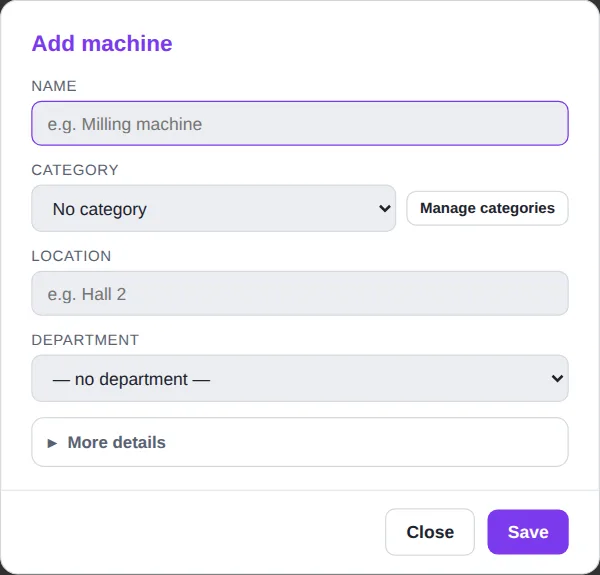
Go to Machines and click + Machine. Only the name is required; you can add the category, location and the fields under More details (internal no., serial no., supplier, responsible, notes) later.
Lots of machines? Import them all at once from Excel: More → Import machines. See Importing machines. You can import the maintenance along with them straight away.
3 Entering maintenance and inspections
After you save a new machine, the app asks "Fill in the maintenance now?". Choose an example (general machine, compressor, forklift, heating/air conditioning, fire extinguishers), one of your own templates, or Fill in myself.
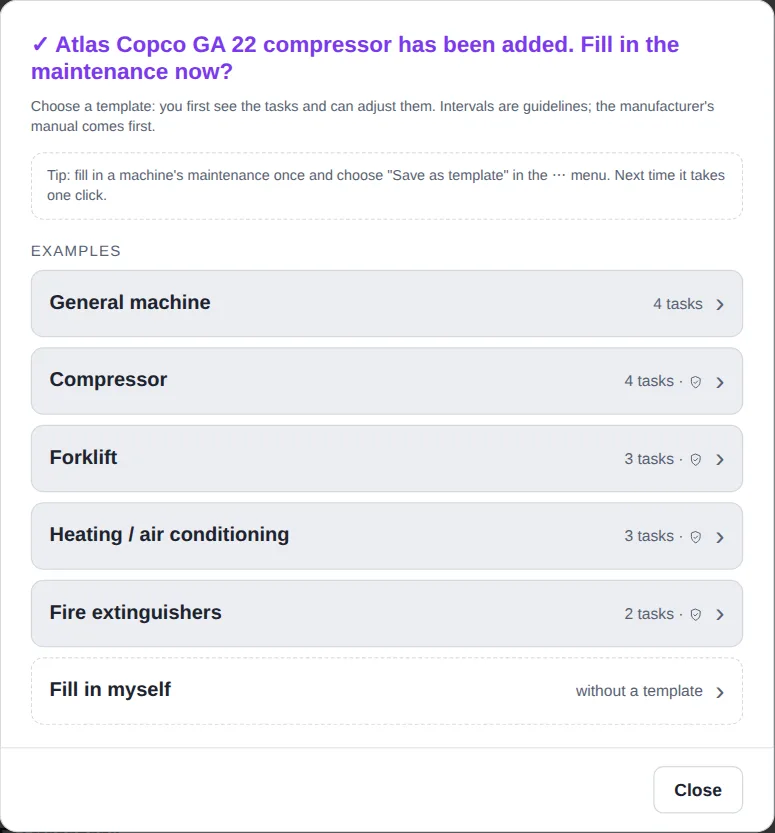
For each action you set how often it recurs (days, weeks, months, years or running hours) and when it was last performed. From this the app calculates the next service. More information: Maintenance actions and inspections.
4 Printing QR labels
Stick a label with a QR code on each machine. Anyone who scans it with a phone can report a fault or record the maintenance straight away. Go to More → Print QR labels, choose the format of your label sheets and print. See QR labels.
5 Inviting colleagues
Go to More → Company, open Invite a new user, enter the name and email address, choose the access level and the language, and click Invite. Your colleague receives an email to choose a password.
- Technician — for people who carry out maintenance and fix faults.
- Operator — for people who only report faults (e.g. the people at the machines). Operators are free and unlimited.
- Administrator — everything, including users and company settings.
More: Access levels and Company and users.
6 Turning on notifications
Open More → My settings. Turn on the weekly email there (every Monday morning: what is overdue, what is due within 14 days and the open faults) and the notifications on this device (push notifications on your phone or PC). Ask your technicians to do the same on their own phones.
Done! From now on, Machines shows for each machine whether it is overdue, due soon or OK.
Part 2 — Full manual
Access levels: who can do what?
Everyone has their own login. You choose an access level for each person:
| Administrator | Technician | Operator | |
|---|---|---|---|
| View machines | ✓ | ✓ | ✓ |
| Report a fault | ✓ | ✓ | ✓ (only sees their own reports) |
| Add and edit machines and maintenance | ✓ | ✓ | – |
| Record work, follow up faults, work orders | ✓ | ✓ | – |
| Inspections, parts, reports | ✓ | ✓ | – |
| Delete (machines, actions, faults, documents …) | ✓ | – | – |
| Company, users, departments, log | ✓ | – | – |
| Counts towards the plan | yes | yes | no — free, unlimited |
A technician can also delete a record they entered themselves.
Adjust it yourself — the administrator can adjust what each access level may do, in Users → What each access level may do → Adjust: e.g. let a technician delete machines, actions, documents and breakdowns. The database checks it itself; the app only shows what is allowed.
The screen
- At the top: the tabs Admin · Maintenance · Plan (only the apps you use) and, on the right, your name with the menu (appearance, language, refresh, info for support, sign out). The administrator also sees a label showing the plan.
- On a PC: the menu is on the left, in three groups: Daily (Machines, My tasks, Faults, Planning), Follow-up (Inspections, Reports, Parts, Log) and Management (Company, Print QR labels, Import machines).
- On a phone: a bar at the bottom with the main buttons and More for the rest.
- The start screen depends on your access level: the administrator starts on Machines, the technician on My tasks, the operator on Report.
- A feature with a padlock is not included in your plan (see Plans).
- An administrator can adapt the menu: see Arranging the menu.
Windows — at the bottom, Delete is on the left, Close and the green main button (usually Save) on the right. If you tap next to a window or press Escape, it only closes when you changed nothing; otherwise it stays open and shakes briefly, so you lose nothing. If you click Close while something is not saved, the app asks: Save · Don't save · Back.
Arranging the menu
An administrator can adapt the menu on the left to the way the company works: go to Company and click Arrange menu. The arrangement applies to everyone in your company.
- Groups — tick the groups you want to use. The names come from a fixed list (e.g. Daily, Production, Management), so they are correct in every language. Each name can be chosen only once.
- Moving and order — choose an item's group; use the arrows ↑ and ↓ to put groups and items in the order you want.
- Hide — hide what you don't use. Restore in the list Hidden items brings it back.
- New — a new item after an update appears in the group New, at the bottom.
- Restore default arrangement — puts everything back the way Hersof provides it.
What someone may not use under their access level or your plan stays hidden for them or shows a padlock. My settings, Install as app and Sign out always stay at the bottom. On a phone the bar at the bottom stays as it is; a hidden item does drop out of it.
Arrange my menu — every user can also arrange their own menu: click your name and choose Arrange my menu. It applies to you only. Back to the company default shows the administrator's menu again. If the administrator wants everyone to see the same menu, they untick Users may arrange their own menu in Arrange menu.
Machines
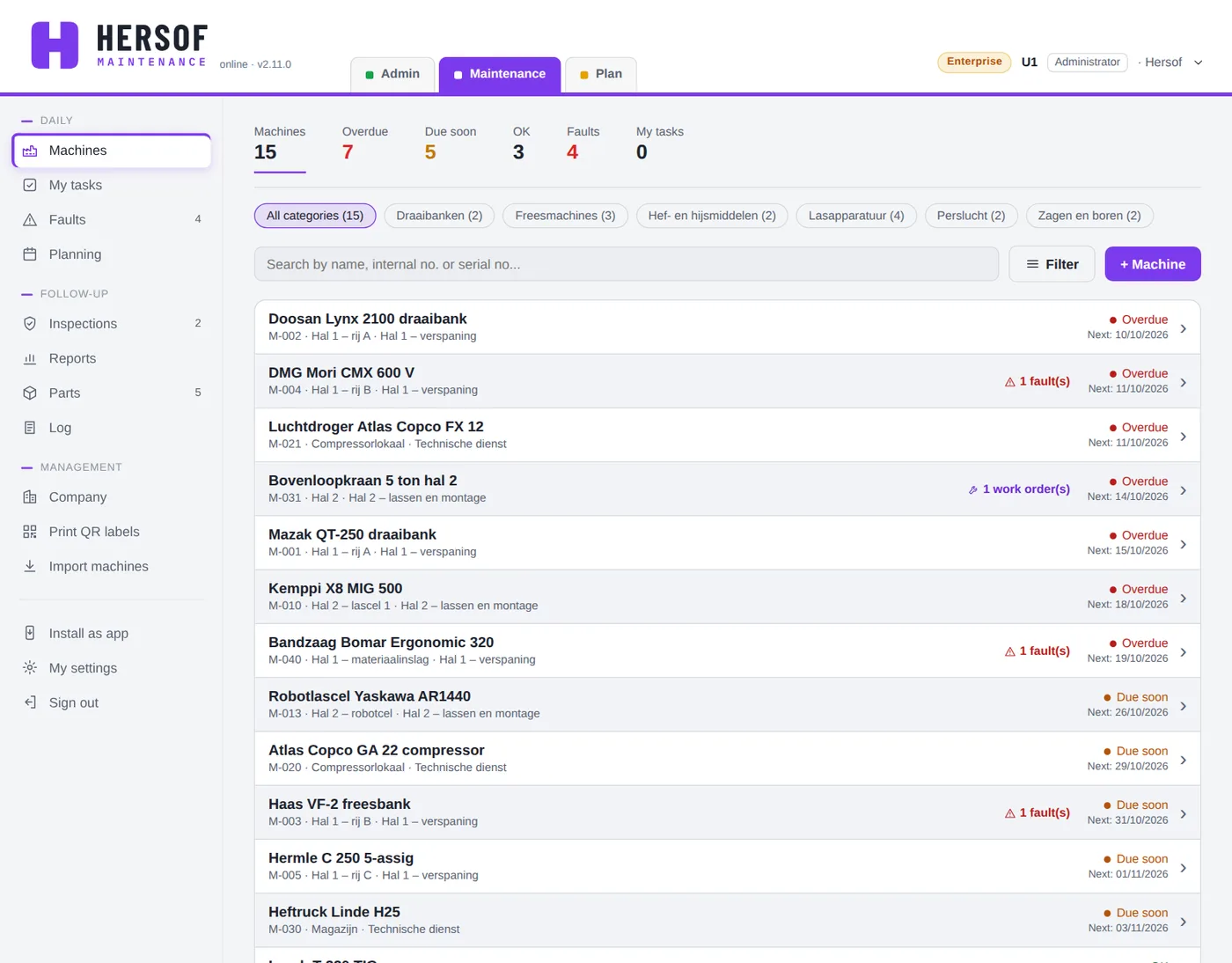
At the top are counters: the number of machines, and how many machines are overdue, due soon or OK, plus open faults and your own tasks. Click a counter to see (and print) the maintenance actions with that status. Note: the counters count machines, the list below shows actions.
Searching and filtering: search by name, internal no. or serial number. With Filter you choose a location or department and the sort order (most urgent first, name, location). Use the buttons below the search field to filter by category.
Per machine you see the name, the internal no., the location, open faults and work orders, a warning if a document has expired, the status and the date of the next maintenance.
A status is determined as follows:
- Overdue — the date of an action has passed;
- Due soon — within 14 days (for an inspection: within 30 days);
- OK — otherwise. A machine gets the worst status of all its actions.
Opening a machine
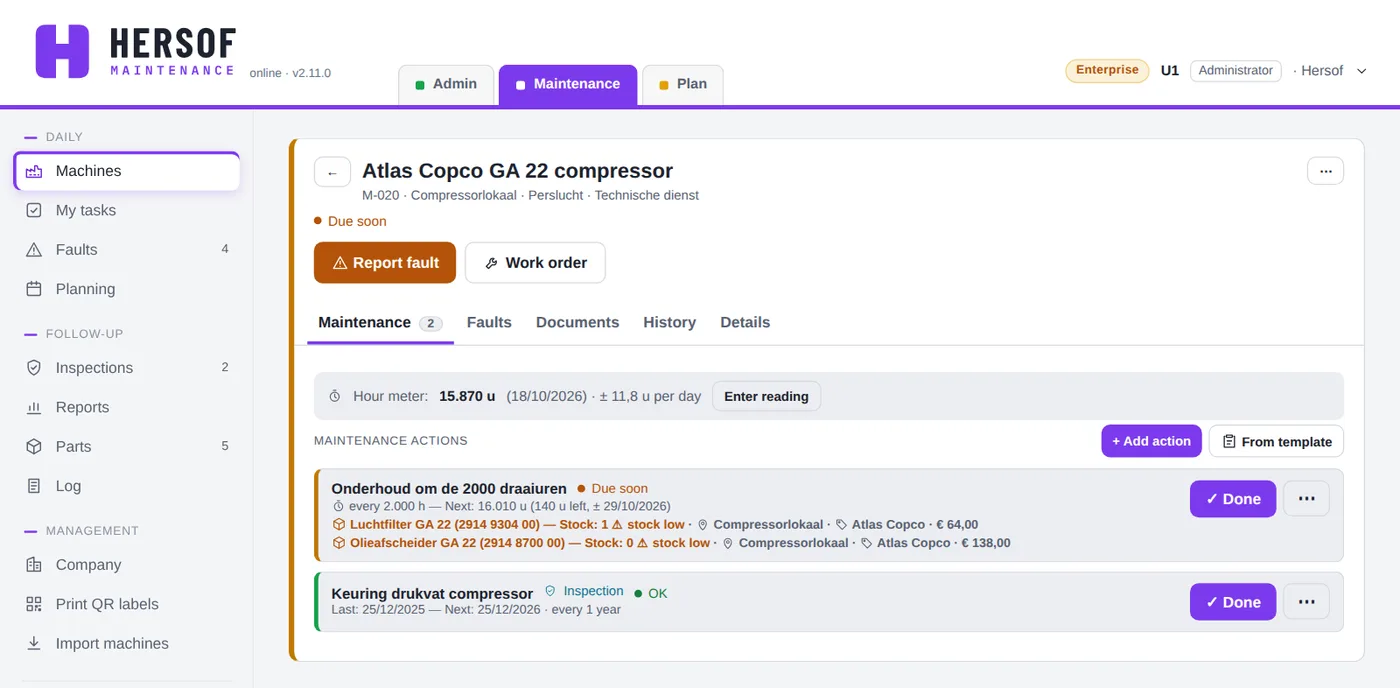
At the top are the buttons Report fault and Work order. Below them are the tabs:
- Maintenance — the meter reading (if the machine tracks running hours) and all maintenance actions with their interval, the next service, the person assigned and the parts. Use ✓ Done to record the work.
- Faults — the faults and work orders for this machine.
- Documents — manuals, diagrams, certificates … (see Documents).
- History — everything that has already been done. Click a line for the details.
- Details — category, numbers, location, department, supplier, responsible and notes.
On a phone, History and Details are under More ▾. An operator taps an action to see its history.
The ⋯ menu at the top right contains: QR code, Print QR label, Edit, From template, Save as template, Copy actions to other machines, Log and Delete.
Categories
Group machines by type (e.g. lathes, forklifts). Manage the list via Manage categories in the machine form or via Company.
Importing machines
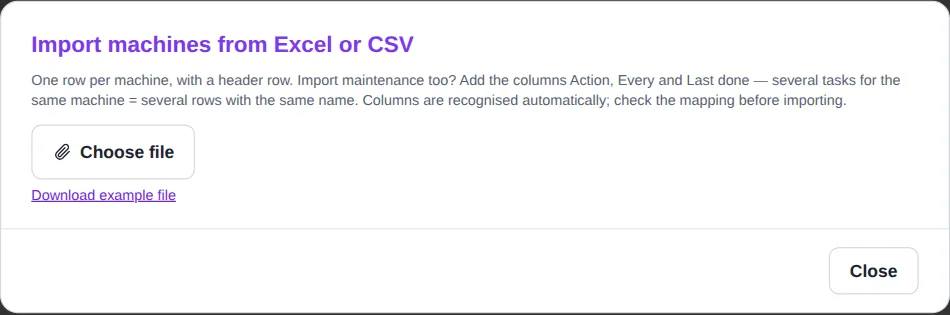
Via More → Import machines you load an Excel file (.xlsx, .xls) or CSV with a header row, up to 2,000 rows. The app recognises the columns itself; you can adjust the mapping. Click Download example file for an example.
| Column | Explanation |
|---|---|
| Name | required |
| Category, Internal no., Serial no., Location, Department, Supplier, Responsible, Notes | optional; missing categories are created |
| Action | name of a maintenance action (to import maintenance as well) |
| Every | e.g. 3 months, 1 year, 500 hours, monthly, yearly |
| Last done | date (dd/mm/yyyy or yyyy-mm-dd) |
| Action type | contains the word inspection, inspect or control → becomes an inspection |
Several actions for the same machine? Put them on several rows with the same machine name. With the Skip machines that already exist tick box, you can safely import a file twice.
Maintenance actions and inspections
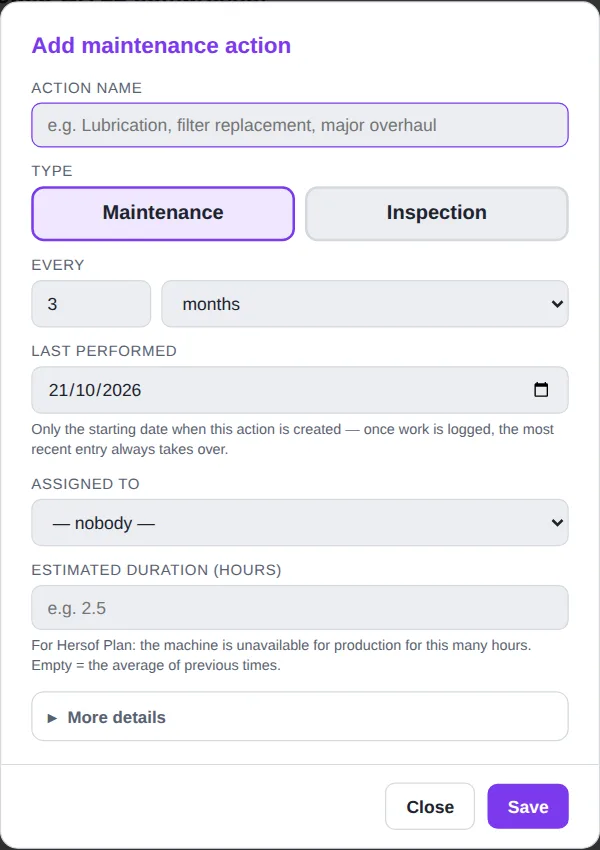
Open a machine and click + Add action.
- Action name — e.g. Change oil.
- Type — Maintenance or Inspection (a periodic inspection, e.g. by an approved body). For an inspection you get a notification 30 days in advance, and the certificate you attach when recording it is added to the machine's documents.
- Every — a number of days, weeks, months, years or running hours (running hours are not possible for an inspection). A month counts as 30 days, a year as 365 days.
- Last performed — the start date (for running hours also the meter reading at last execution). As soon as work is recorded, the most recent record always counts.
- Assigned to — the administrator or technician who does this maintenance. They see it in My tasks.
- More details — a checklist (one step per line) and the parts you need for each service (from Team).
The next service = the last execution + the interval. For running hours: the meter reading at the last execution + the interval; the date is estimated from the average use per day (marked with ±).
Templates and copying
- From template — add a series of actions in one go from an example or one of your own templates. Actions that already exist are marked.
- Save as template (⋯ menu of a machine) — save a machine's actions to reuse them for similar machines.
- Copy actions to other machines — choose which actions and which machines (e.g. all machines in the same category). Copied actions start today; the assignment is not copied.
Recording work
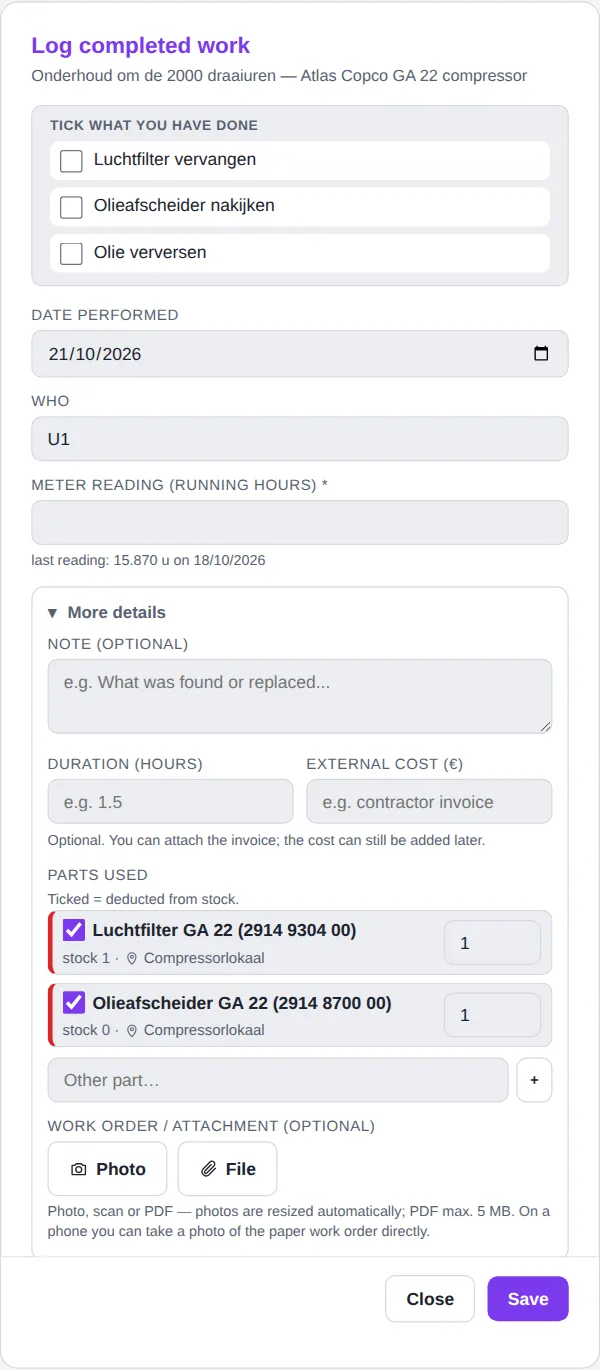
Click ✓ Done next to an action (administrator and technician).
- Tick off the steps of the checklist. Not everything ticked? The app asks whether you want to save anyway.
- Check the date and who did it (default: today and you).
- For maintenance based on running hours: enter the meter reading (required).
- Under More details: a remark, the duration in hours, an external cost, the parts used (ticked = deducted from stock) and one attachment: a photo of the job sheet, a scan or a PDF. For an inspection this is the inspection certificate.
- Click Save. The next service moves forward immediately; the message tells you when the next time is. A mistake? Click Undo in that message (8 seconds).
An inspection certificate is automatically added to the machine's Documents, with valid until set to the inspection date plus the interval.
In History you see for each record who did the work, who entered it (and when), the checklist, the parts and the costs. You can still add the costs afterwards. If you delete a record, the app asks whether the parts should go back into stock. If you change the costs in the detail, Save appears on the right.
Meter readings and running hours
Machines with an hour meter (compressors, forklifts, CNC …) can have maintenance every so many running hours. To do this, enter the reading regularly: open the machine and click Enter reading. Anyone can do this, including an operator. The more often you enter a reading, the better the app can estimate the date of the next service (based on use over the last 180 days). A lower reading than the previous one? Then the app asks whether the meter has been replaced.
Faults and work orders
Reporting a fault
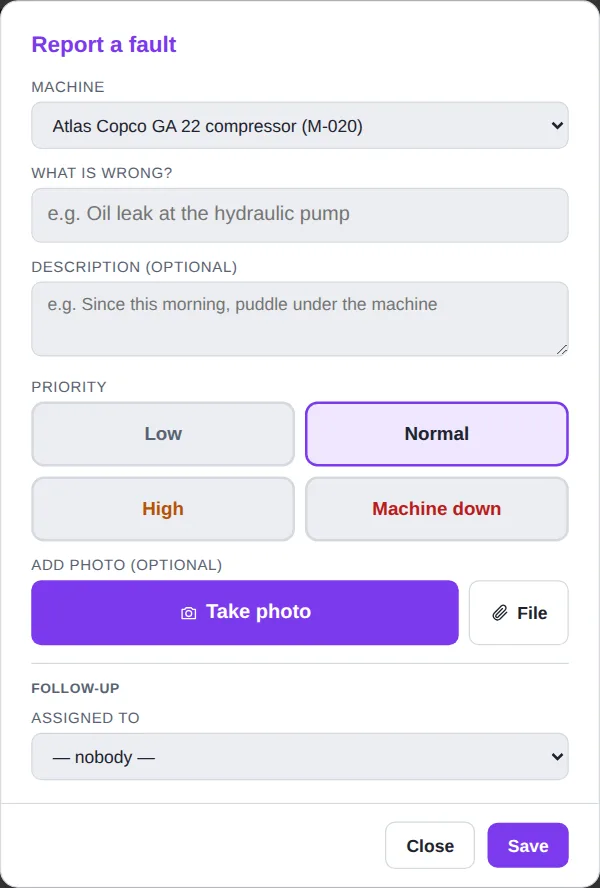
Anyone can report a fault: with the Report fault button on a machine, via the Faults screen, or by scanning the QR code on the machine. Enter what is wrong, optionally a description, choose the priority (Low, Normal, High or Machine down) and add a photo if you like.
An operator clicks Send and gets the confirmation "The maintenance team has been notified.". Administrators and technicians can also assign the fault straight away.
Following up a fault
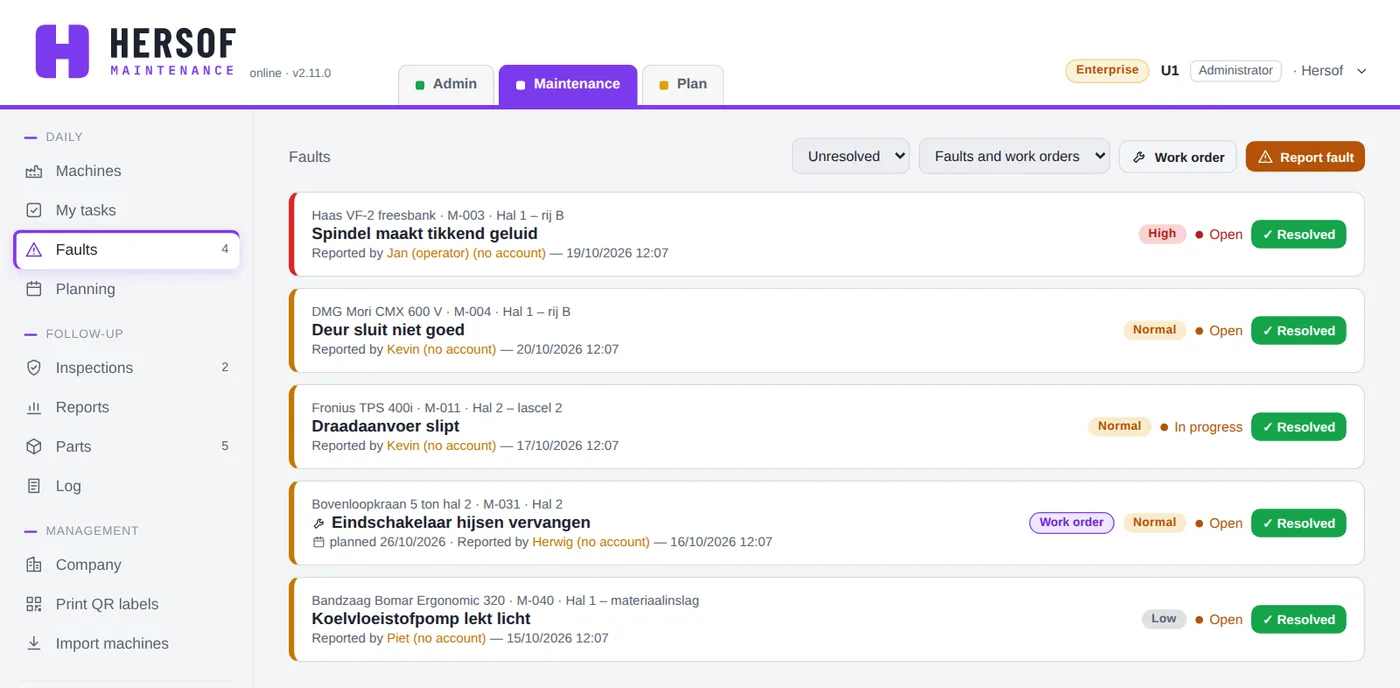
- ▶ I'll take it — sets the fault to In progress and assigns it to you.
- ✓ Resolved — enter what was done, optionally the duration and an external cost, and save. The ✓ Resolved button is also right in the list (Faults, My tasks).
- Status: Open → In progress → Resolved. The report itself stays as it was submitted; only an administrator can still change it. The Status list, the duration and the external cost are under More details; change the priority with change.
- Filter at the top by status and by type (faults, work orders or both). Unresolved faults are at the top, the most urgent first.
Anyone who reports Machine down alerts the colleagues who have turned on an email or push notification for it (see My settings).
Work orders
A work order is planned work that is not routine maintenance (e.g. a repair, a modification). Administrators and technicians create one with the Work order button (on a machine, in Faults or in Planning). Enter the same details as for a fault, plus Planned for (empty = no date yet). A work order ends with the status Completed.
Reporting faults without an account from Team
Do you want people without a login (e.g. temporary workers, visitors) to be able to report a fault via the QR code as well? Then turn on the option Reporting faults without an account in Company → Settings. Anyone who scans without being signed in then enters their name and the fault; in the app they appear as "name (no account)". This is off by default.
QR code on the machine
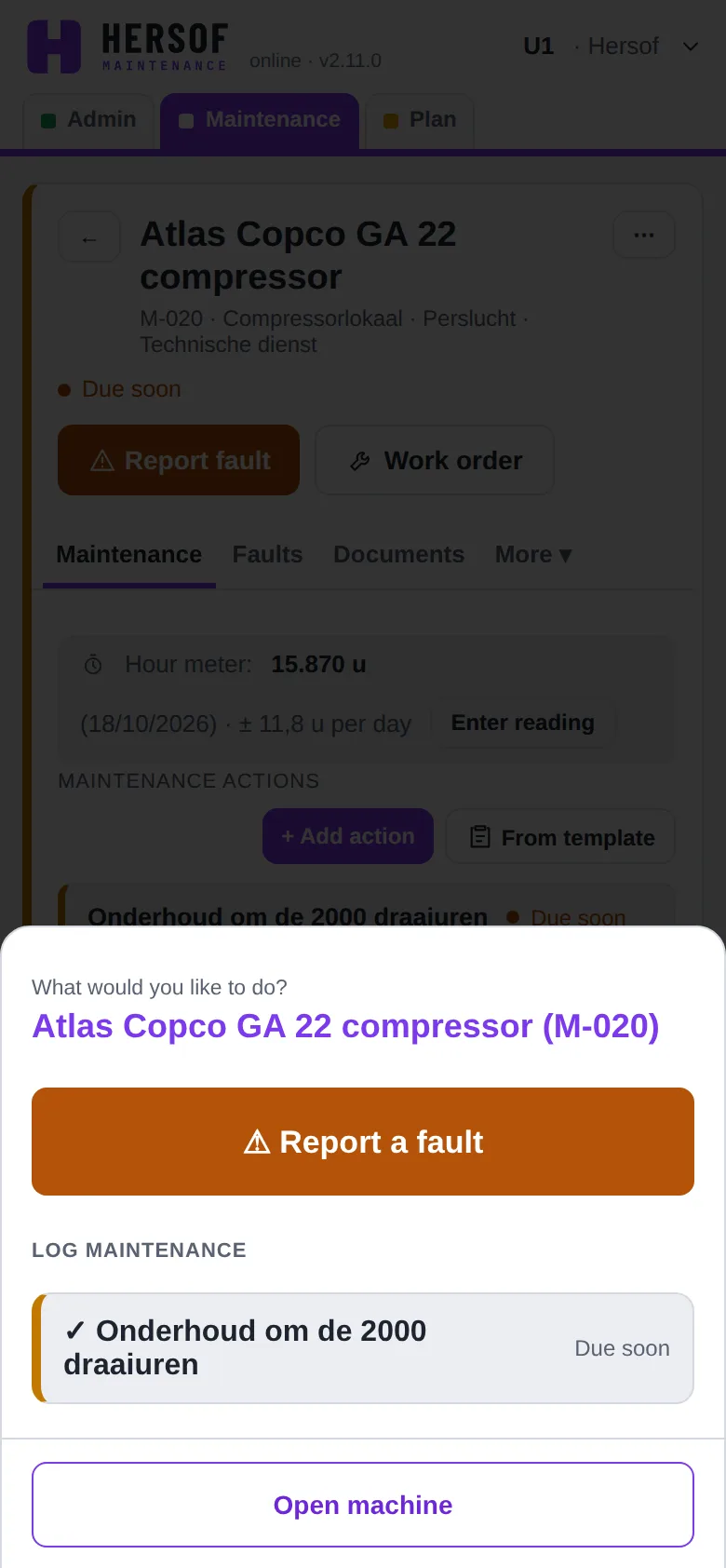
Scan the label with your phone's camera:
- Administrator or technician — you choose: Report fault, view the documents, open an open fault, record the maintenance that is due now, or open the machine.
- Operator — the report form opens straight away.
- Not signed in — you sign in first and then go to the machine. If reporting faults without an account is on, you can report straight away.
Printing QR labels
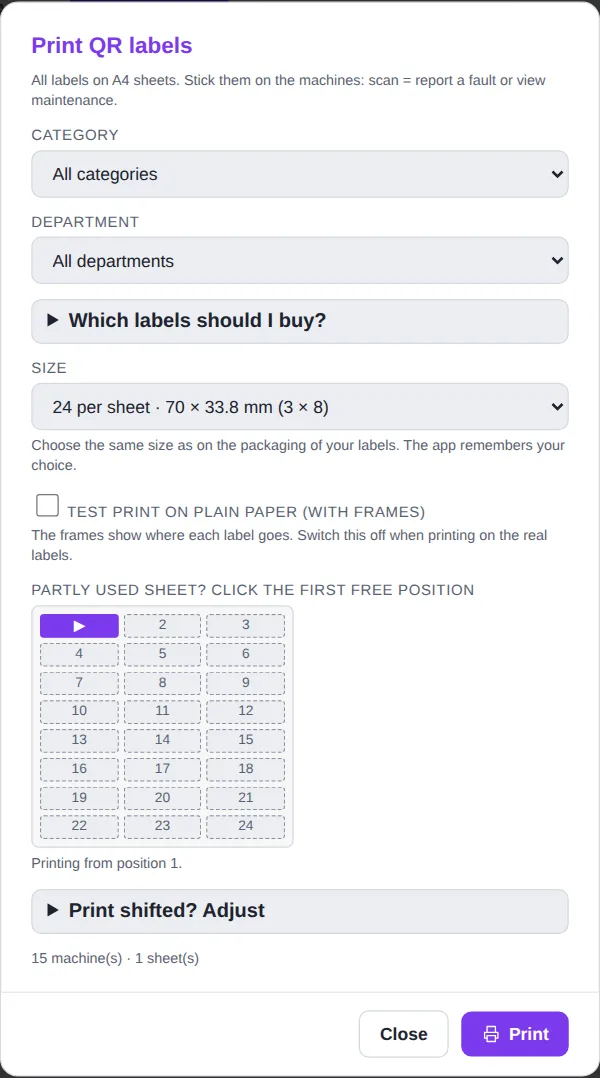
- Go to More → Print QR labels (or via ⋯ for a single machine). Optionally choose a category or department.
- Choose the size of your label sheets (the same size as on the packaging): 24, 21, 12 or 8 per A4 sheet. Under Which labels should I buy? you will find tips: A4 without gaps, preferably polyester or vinyl (more resistant to oil and moisture).
- First do a test print on plain paper (with frames) and lay it on top of a label sheet.
- A partly used sheet? Click the first free position.
- Print at 100 % scale, margins: none, with headers and footers off. Is everything slightly shifted? Open Print shifted? Adjust and move it a few mm.
My tasks and planning
My tasks shows what is assigned to you, in three blocks: Now (overdue, today, urgent faults), This week and Later. Nothing assigned? Then you can view overdue maintenance or open faults from there.
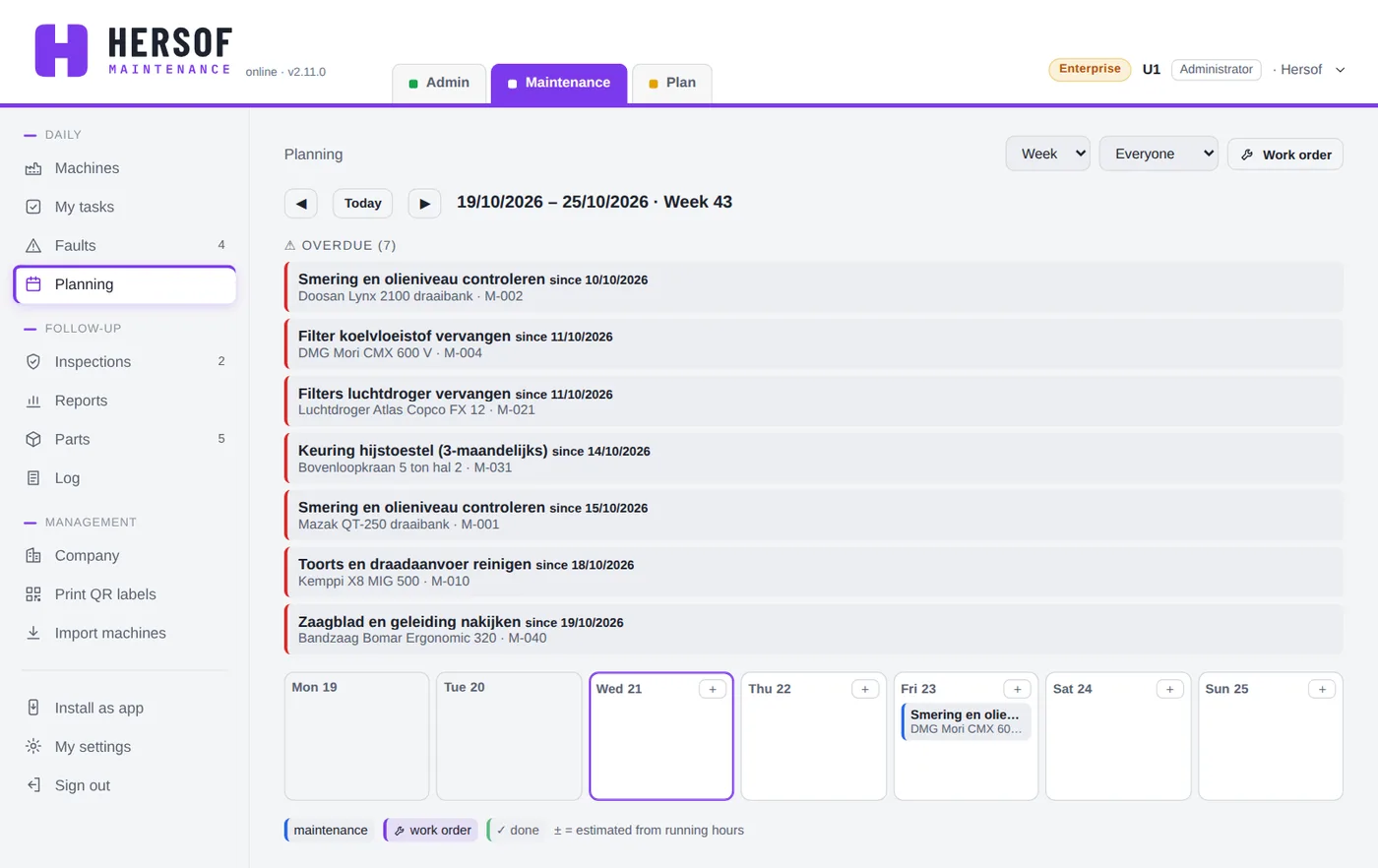
Planning shows all maintenance and work orders per week or per month. Filter by person (everyone, only me, a colleague, unassigned) and browse with ◀ Today ▶.
- At the top: what is overdue.
- Click + on a day to create a work order for that day.
- Click maintenance to record it straight away, or a work order to open it.
- At the bottom: no date — work orders without a date and running-hours maintenance for which there are not yet enough meter readings. A ± means: estimated from the running hours.
Inspections
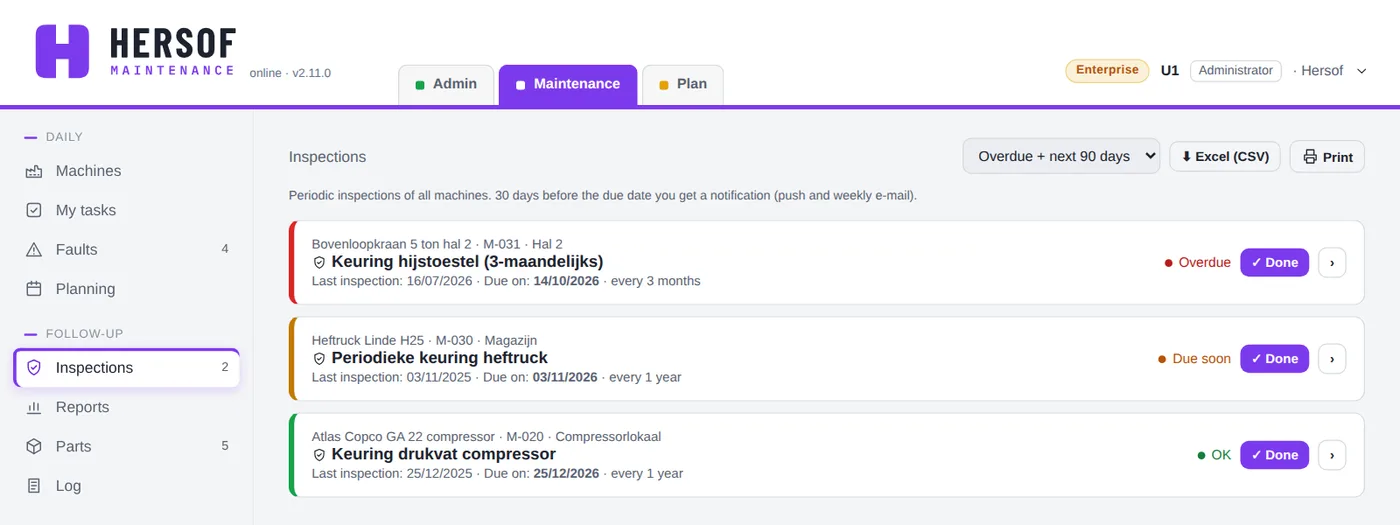
The Inspections screen shows the periodic inspections of all machines: by default what is overdue and what falls due within 90 days (or only overdue, or everything). For each inspection you see the last inspection, the due date and the interval, with ✓ Done to record the certificate. Export the list to Excel (CSV) or print it, e.g. for an audit. You get a notification 30 days before the due date (push notification and weekly email).
Documents
For each machine you store documents in the Documents tab → + Add document: PDF, photo, Word, Excel, drawing (DWG/DXF) or ZIP, up to 50 MB per file. Choose the type (manual, diagram/drawing, inspection/certificate, photo, other) and a title. For an inspection/certificate you enter valid until: if it has expired or expires within 30 days, you see a warning on the machine.
With ⧉ you link the same document to other machines (e.g. one manual for five identical forklifts); the file is stored only once. The storage space depends on the plan: Starter 1 GB, Team 10 GB, Pro 50 GB, Enterprise unlimited.
Parts and stock from Team
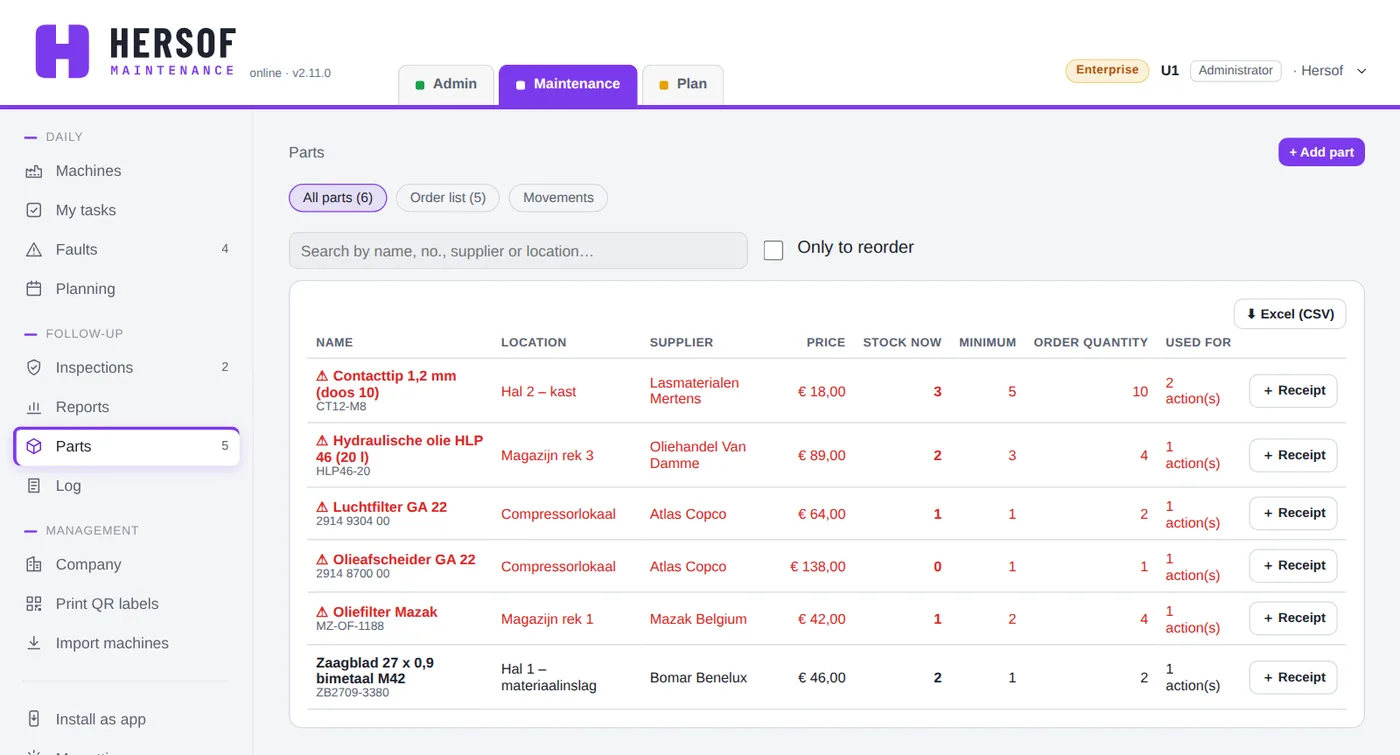
- + Add part — name, number/reference, supplier, location in the store, stock, minimum, order quantity and price per piece. If you leave the stock empty, it is not tracked.
- Link parts to a maintenance action; when the work is recorded they are automatically deducted from stock.
- + Receipt — book in a delivery (quantity, price, a remark such as the delivery note number).
- On a phone — one card per part with the location, the stock and the minimum (in red when you need to reorder) and the + Receipt button.
- Order list — everything at or below the minimum, per supplier, with print, Excel and ✉ Email (opens an email with the order lines).
- Movements — every use, receipt and correction is tracked automatically. A change to the stock in the part itself counts as a correction (stock count).
Reports and costs from Team
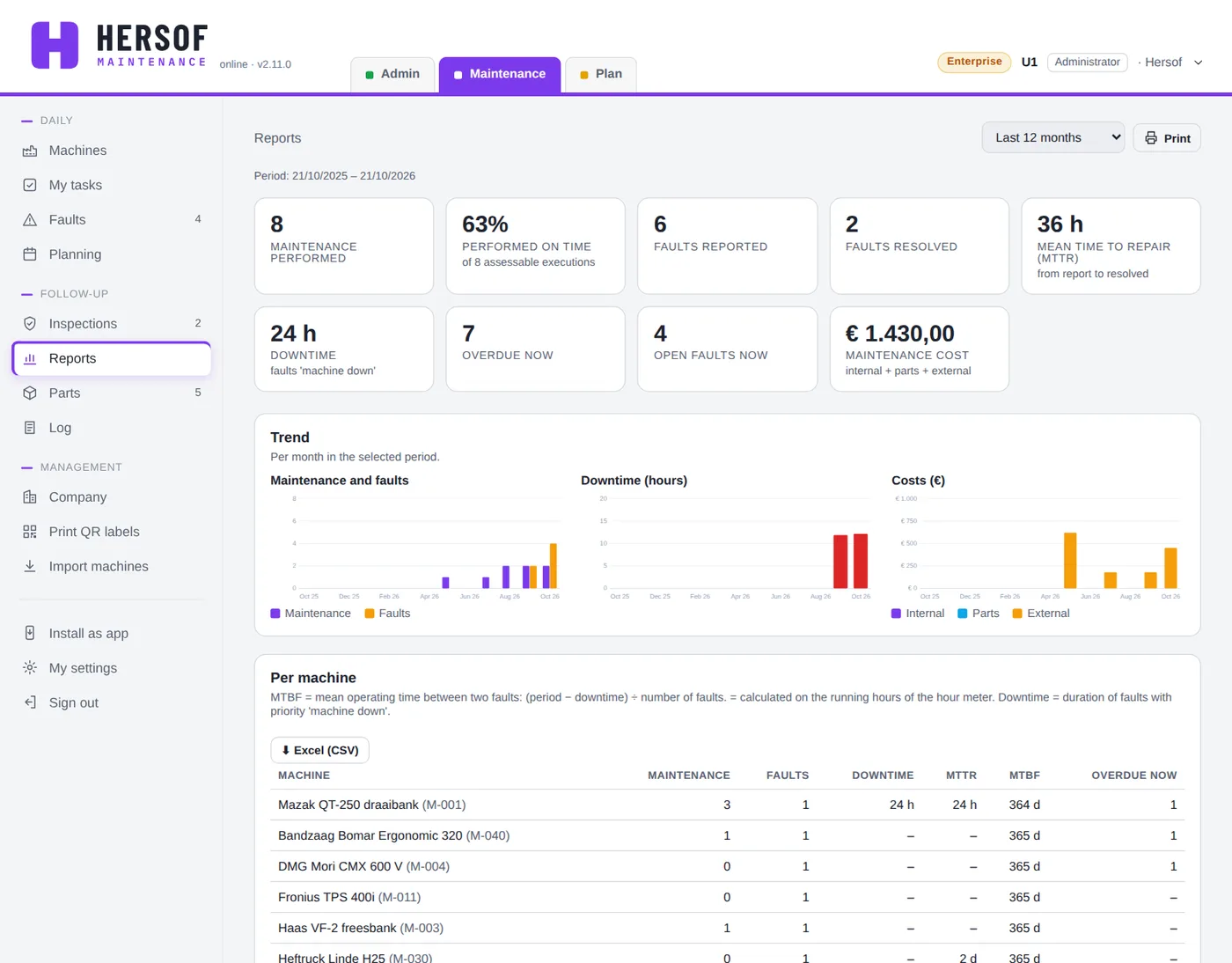
Choose a period (last 30 or 90 days, 12 months, this or last calendar year). Among other things you see: the maintenance performed, the percentage on time, faults reported and resolved, the mean time to repair (MTTR), the downtime and the maintenance cost (internal + parts + external), with charts showing the trend. Below that are tables per machine (with MTBF), costs per machine, parts usage, stock and per person — each also exportable to Excel (CSV). On a phone you first see the key figures; open a table with Details.
The internal cost = the duration of the work × the internal hourly rate. Set this in Company → Settings.
Departments and access Pro
By default everyone sees all machines. With departments (e.g. per hall or per site) you can restrict this per person. Go to Company → Departments and access: create departments (or have them created from your machines' locations) and choose for each technician or operator All departments or Only: with tick boxes. An administrator always sees everything.
Log Pro
The Log (administrator only) shows every change: who, when and what. It is kept by the database itself and cannot be changed or erased — useful for an audit. Filter by period, type and search term, or export to Excel. For a single machine, open the log via ⋯.
Company and users
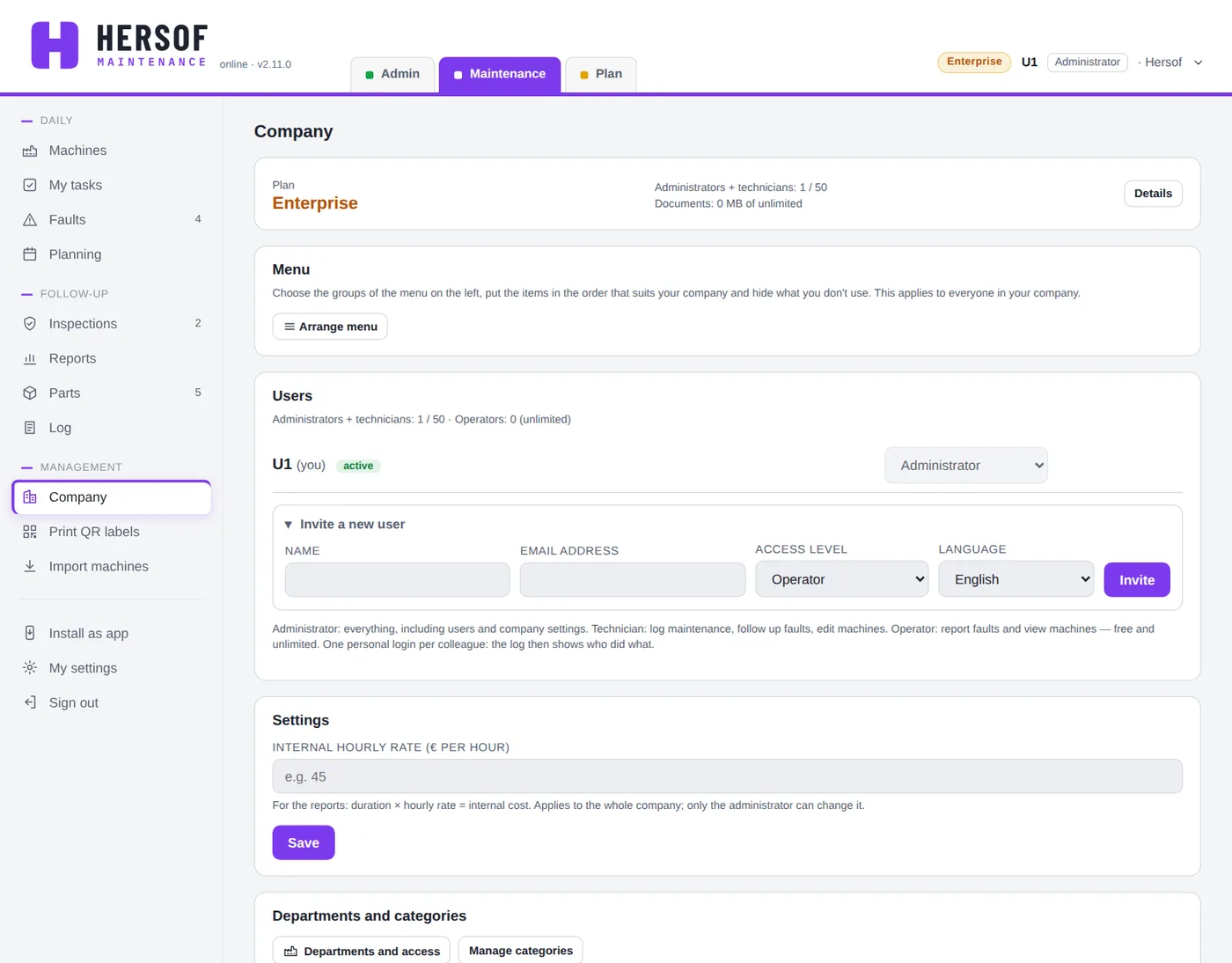
- Plan — which plan you have, how many administrators + technicians you use and how much document storage.
- Users — change the access level for each person, or Deactivate: that person can no longer sign in, but everything they did is kept. You can always reactivate them. You invite new colleagues here (see step 5).
- Settings — reporting faults without an account and the internal hourly rate.
- Manage Departments and categories.
One login works for all the Hersof apps in your account. You will find the same user management in Admin and Plan.
My settings, language and appearance
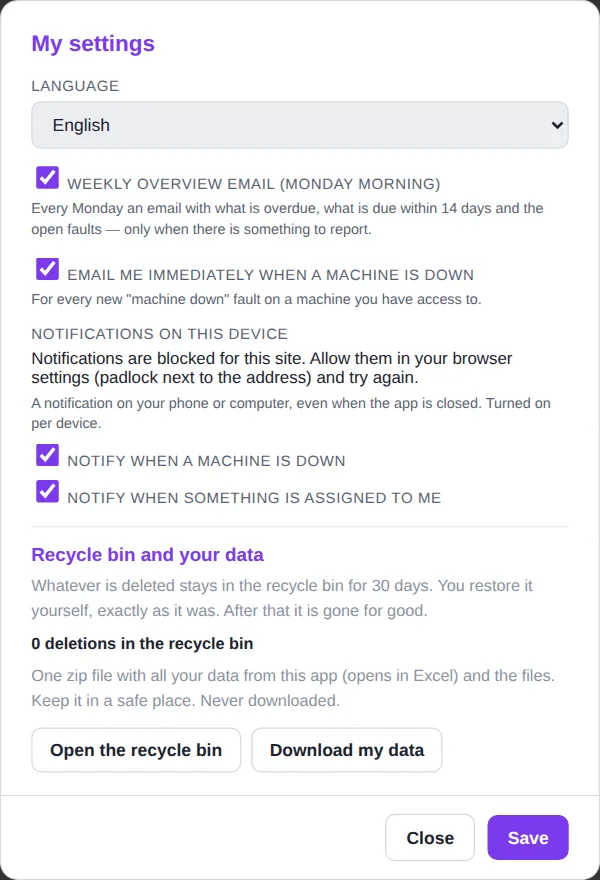
Via More → My settings (everyone chooses this for themselves):
- Language — Nederlands, Français, English or Deutsch.
- Weekly email (Monday morning) — what is overdue, what is due within 14 days and the open faults; only if there is something to report.
- Email me immediately when a machine is down.
- Notifications on this device — turn on push notifications per device (phone, PC). Choose whether you want a notification for machine down and when something is assigned to me. Use Test notification to check that it works. On an iPhone this only works after you have added the app to the home screen (see below).
Email and push notifications are available to administrators and technicians. In the menu under your name you choose the appearance (light, dark or same as your device) and the language; that choice applies in all Hersof apps.
Recycle bin and your data
Deleted something by mistake? Don't panic: it stays in the recycle bin for 30 days. Only the administrator sees the recycle bin, in My settings → Recycle bin and your data.
Deleting — when the administrator deletes a fault, action, machine, entry or part, it happens immediately; the message contains Undo to restore it. Only for a machine or action with history does the app ask first. A technician always gets the question first, because only the administrator can restore.
- Restore — one click brings it back, exactly as it was (number, date …), together with whatever was removed with it (e.g. the operations of an order). Whatever exists again is never overwritten; if something fails, you see why.
- For each deletion you see when, by whom and until when it stays in the recycle bin. After 30 days it is gone for good, photos and attachments included.
- Download my data — one zip file with all your data from this app (opens in Excel) and the photos, attachments and documents. That way you always have your own copy. Keep it in a safe place. If your last download is more than 3 months ago, the administrator gets a reminder.
Installing as an app and working offline
Hersof Maintenance works in the browser, but you can also install it as an app (its own icon, opens faster, needed for push notifications on an iPhone):
- PC (Edge or Chrome) — More → Install as app: one click.
- Android (Chrome) — menu ⋮ → Install app or Add to Home screen.
- iPhone (Safari) — Share button → Add to Home Screen.
No connection for a while? You will still see the most recently loaded data (up to 14 days), with a message at the top. You can only make changes once you are back online. When you sign out, that data is erased from the device.
Together with Hersof Plan
Do you also use Hersof Plan? Then maintenance actions and work orders get the field Estimated duration (hours): the number of hours the machine is not available for production. Scheduled maintenance, inspections and work orders then appear in Plan's load view (including running-hours maintenance, with the estimated date). Empty = the average of previous times. To make this work, link each Plan machine in Plan to the right Maintenance machine.
Plans and trial period
| Starter | Team | Pro | Enterprise | |
|---|---|---|---|---|
| Administrators + technicians | 3 | 10 | 25 | 50 |
| Operators and machines | unlimited | |||
| Document storage | 1 GB | 10 GB | 50 GB | unlimited |
| Maintenance, inspections, faults, planning, QR labels, documents | ✓ | ✓ | ✓ | ✓ |
| Parts, stock and order list | – | ✓ | ✓ | ✓ |
| Costs and reports | – | ✓ | ✓ | ✓ |
| Reporting faults without an account | – | ✓ | ✓ | ✓ |
| Departments and access restrictions | – | – | ✓ | ✓ |
| Log | – | – | ✓ | ✓ |
Prices are on the Hersof Maintenance page. A feature that is not included in your plan has a padlock; click it for an explanation. The administrator sees the plan via the label next to their name or in Company.
Trial period — for the first 30 days you work with all the Pro features. From 7 days before the end, the administrator sees a message at the top. After that you simply carry on with your plan: anything that is only in a bigger plan is locked, but what you have already created stays visible.
Need help?
Email herwig@hersof.be. Something going wrong in the app? In the menu under your name, click Info for support, copy what it shows and paste it into your email: that way we immediately see your version, your device and the latest error messages. Errors in the app are also reported to Hersof automatically.