Manuals · Hersof Calc
Hersof Calc manual
With Hersof Calc you work out what a part or a job costs you and what you charge for it: material, hours of people and machines, subcontracted work, purchased parts and miscellaneous. Calc suggests the sales price with your margin, so you quote quickly and correctly. Part 1 helps the administrator get started. Part 2 explains every screen.
Part 1 — Quick start for the administrator
In six steps you make your first costing. The most important thing is correct hourly rates: every costing uses them.
1 Signing in
- You receive an email from Hersof: "You have been invited to Hersof". Click Choose my password, choose a password (at least 6 characters) and click Set password.
- Sign in at hersof.be/login.html. Do you have several Hersof apps? Click the Calc tab at the top.
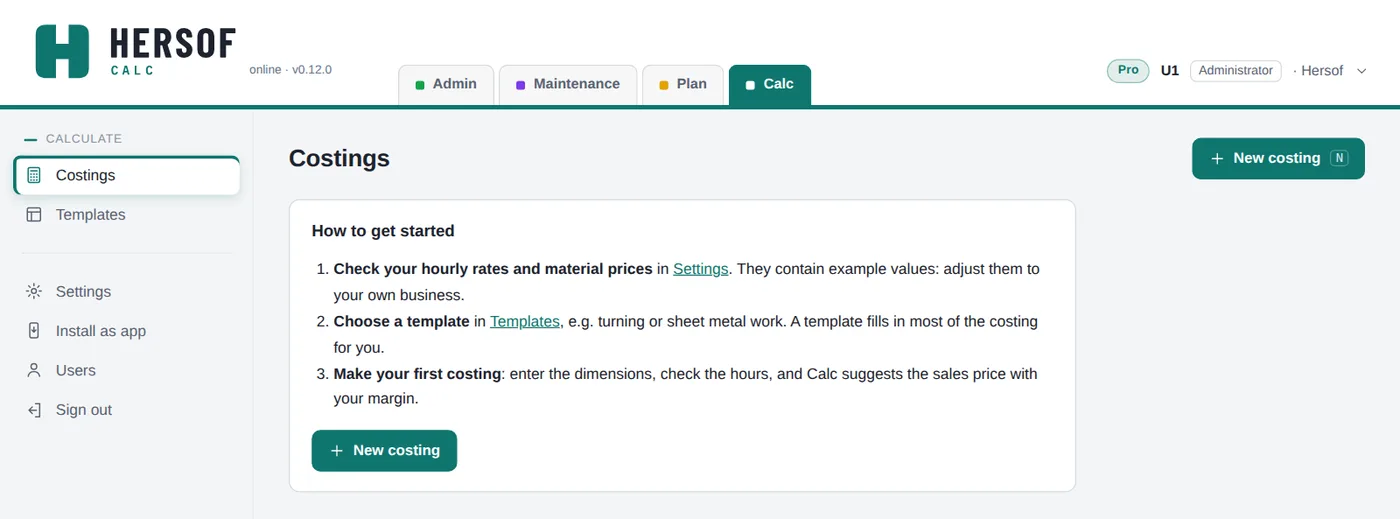
Cost prices and margins are confidential. That is why Calc works only for the administrator of your account. In Calc Pro, staff can also work along as calculator.
2 Your hourly rates and material prices
Go to Settings. Example values are filled in; adapt them to your own company and click Save.
- Cost price per hour — what an hour really costs you: wages with social charges, or the machine (depreciation, energy, maintenance), plus your overheads.
- Sales rate per hour — what you charge the customer per hour. Calc shows the margin of each hourly rate right away.
- Materials — your purchase price per unit, and the density (kg per dm³) the templates use to calculate the weight from the dimensions.
- Mark-up — the standard mark-up on material, subcontracted work, purchased parts and miscellaneous, and your minimum margin: below it, Calc warns you.
3 The starter templates
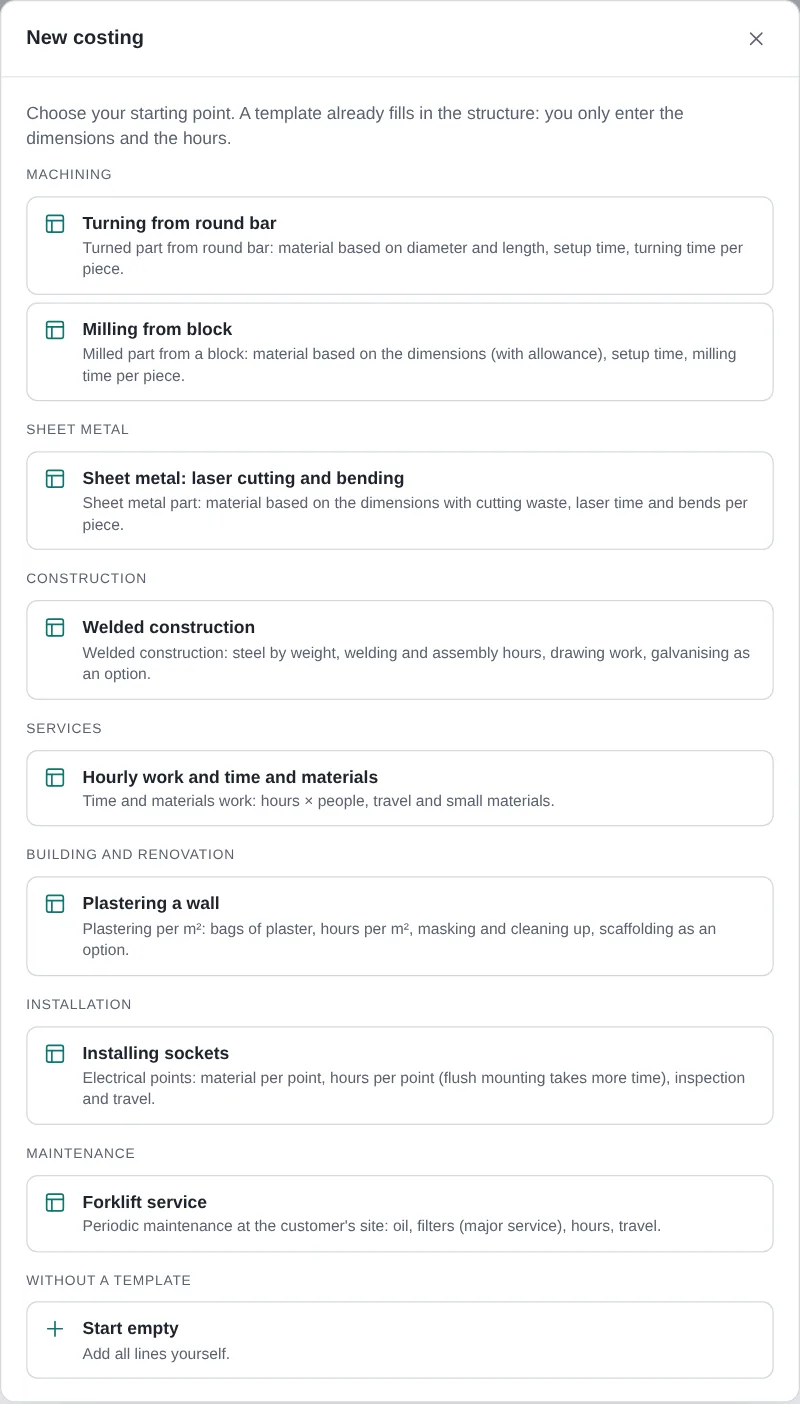
Go to Templates and click Add starter templates. You get eight ready-made templates: turning, milling, sheet metal, welded construction, time-and-materials work, plastering a wall, fitting sockets and a maintenance service. A template already fills in the structure of a costing; you only enter the dimensions and the hours.
4 Your first costing
- Click New costing (or press N) and choose a template, or Start empty.
- Give the costing a title, choose the customer and enter the number of pieces.
- Fill in the inputs (e.g. diameter, length, material) and check the hours. The cost price is calculated while you type.
- Click Save (or Ctrl+S). The costing gets a number, e.g. CALC-2026-001.
5 Choosing the price
On the right you see the cost price, the suggested price per piece (with your rates and mark-ups), the margin, the mark-up and the profit. Leave the Price per piece field empty to follow the suggestion, or enter a price or a margin yourself. If the margin is below your minimum it turns orange; if you lose money, red.
6 Quotation
- Do you also have Hersof Admin? Click Create quotation in Hersof Admin: the quotation is in Admin right away, as a draft (see Together with Hersof Admin).
- Without Admin, click Quotation for the customer: you first see a preview, then choose Print / PDF or E-mail. The quotation shows no cost price or margin. If you also have Hersof Admin, the quotation always goes through Admin.
Part 2 — Full manual
Access levels: who can do what?
| Administrator | Calculator Pro | Reader | |
|---|---|---|---|
| Create, view and edit costings (with cost price and margin) | ✓ | ✓ | – |
| Versions, quotation in Admin, quotation for the customer, post-calculation, to Plan | ✓ | ✓ | – |
| Use templates | ✓ | ✓ | – |
| Create and edit templates, add starter templates | ✓ | – | – |
| Change settings (hourly rates, materials, mark-up) | ✓ | view | – |
| Delete a costing | ✓ | – | – |
A calculator is a staff member with the technician access level. In Calc Starter and Team, Calc works only for the administrator; in Calc Pro and Enterprise also for the calculator. You invite staff via Users in Admin, Plan or Maintenance.
The screen and the costings
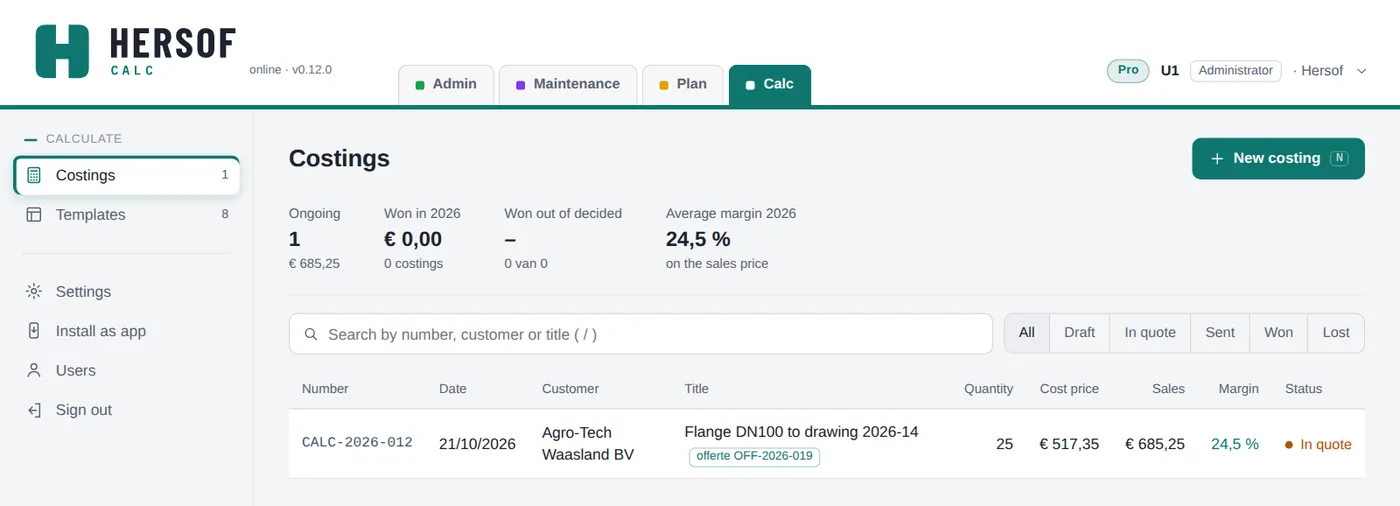
- Menu on the left: Costings, Templates and Settings. Top right your package and your name.
- At the top of the list: what is ongoing, what you have won this year, how many of the decided costings you won, and your average margin.
- Search by number, customer or title (/) and filter by status: Draft, In quote (the quotation is in Admin), Sent, Won or Lost. With Hersof Admin the status follows the quotation automatically; without Admin you set it yourself in the costing. On a phone each costing is a small card and the figures fit on one line.
- Calc works online only. If someone changed the same costing in the meantime, nothing is overwritten and you get a message.
- An administrator can adapt the menu: see Arranging the menu.
The buttons at the bottom of a window are always in the same place: on the left Delete and related actions, on the right Close and the green main button (e.g. Save).
Arranging the menu
An administrator can adapt the menu on the left to the way the company works: go to Settings → Menu and click Arrange menu. The arrangement applies to everyone in your company.
- Groups — tick the groups you want to use. The names come from a fixed list (e.g. Daily, Production, Management), so they are correct in every language. Each name can be chosen only once.
- Moving and order — choose an item's group; use the arrows ↑ and ↓ to put groups and items in the order you want.
- Hide — hide what you don't use. Restore in the list Hidden items brings it back.
- New — a new item after an update appears in the group New, at the bottom.
- Restore default arrangement — puts everything back the way Hersof provides it.
What someone may not use under their access level or your plan stays hidden for them or shows a padlock. Settings, Users and Sign out always stay at the bottom. On a phone the bar at the bottom stays as it is; a hidden item does drop out of it.
Arrange my menu — every user can also arrange their own menu: click your name and choose Arrange my menu. It applies to you only. Back to the company default shows the administrator's menu again. If the administrator wants everyone to see the same menu, they untick Users may arrange their own menu in Arrange menu.
The worksheet
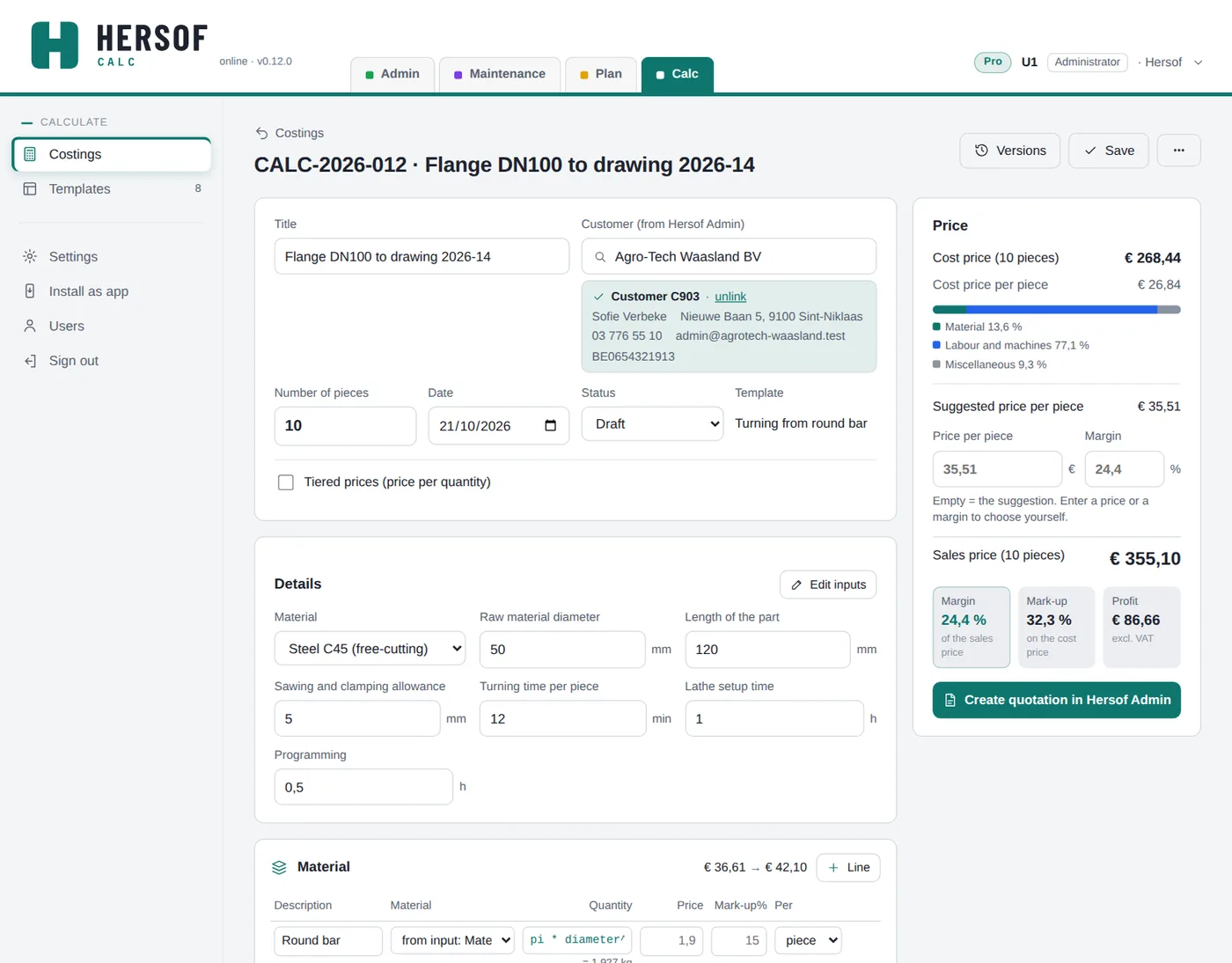
At the top the title, the customer, the date, the status and the number of pieces. Below that the inputs and five types of cost lines:
| Type | Examples | Sales price |
|---|---|---|
| Material | plate, bar, tube | cost price + mark-up |
| Labour and machines | sawing, turning, welding, assembly | hours × sales rate |
| Subcontracted work | galvanising, hardening, painting | cost price + mark-up |
| Purchased parts | bolts, bearings, locks | cost price + mark-up |
| Miscellaneous | transport, packaging | cost price + mark-up |
- Per line: description, hourly rate or material, quantity (a number or a formula), price, rate or mark-up, and per piece or per order. A line per order (e.g. set-up time, transport) counts once, however large the quantity.
- If you leave the price or rate empty, Calc takes it from the settings (shown in grey). If you enter something, it applies only to this line.
- With the three dots next to a line you move it up or down, duplicate it or delete it.
- At the bottom: extra info on the quotation (in a box at the bottom of the quotation, above the fixed text) and internal notes (appear nowhere). The line on the quotation is the title of the costing.
- Via ⋯ top right: make a copy, save as template, quotation for the customer, print internally (with cost price) and delete.
- One green button in the price card: the next step for the status. Draft: Create quotation in Hersof Admin (without Admin: Quotation for the customer). In quote or Sent: Open quotation in Hersof Admin. Won: Hours to Hersof Plan, then Post-calculation. Everything else is under ⋯ (e.g. Create another quotation). On a phone this button is also on the right of the bottom bar, and each cost line is a small card (price and rate after price and rate).
- Save turns green as soon as something is not saved. Top left, ← Costings takes you back to the list. If something is still unsaved, Calc asks: Save, Don't save or Back.
Inputs and formulas
Inputs are the dimensions and choices you enter for each costing: a number (e.g. length in mm), a choice from a list, or a material. Each input has a short code that you use in formulas; you see that code in the template and in Edit inputs, not while filling in a costing. With Edit inputs you add or change them.
A quantity may be a formula, as in Excel: in Calc a comma is the decimal separator and a semicolon separates the parts of a function.
| Formula | Meaning |
|---|---|
| aantal * 0,25 | a quarter of an hour per piece |
| 2 / 60 | two minutes (in hours) |
| pi * diameter^2 / 4 * lengte / 1000000 * mat_dichtheid | weight of a round bar in kg |
| naar_boven(lengte / 6000) | number of 6 m bars, rounded up |
| max(1; aantal / 50) | at least 1 |
Functions: afronden (round), naar_boven (round up), naar_beneden (round down), min, max, wortel (square root), abs, and pi. aantal is the number of pieces. For a material input with the code mat you also have mat_prijs (price) and mat_dichtheid (density). Below a formula you see the result (e.g. = 1.927 kg). An error is shown in red; that line then does not count, and as long as there is an error you cannot make a quotation.
Price, margin and price per quantity
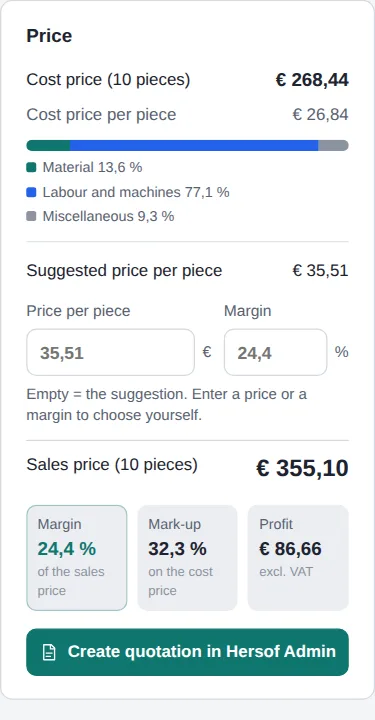
- Cost price — the sum of all lines, with a bar per type.
- Suggested price per piece — with your sales rates and mark-ups, rounded as set.
- Price per piece and margin — enter one of the two; the other is calculated. A price of € 0 is not possible: clear the field to follow the suggestion.
- Margin = profit on the sales price, mark-up = profit on the cost price.
- Price per quantity Team — see at a glance what one piece costs for 1, 10 or 100 pieces: set-up and transport are spread. Switch it on with the Tiered prices tick box at the top of the calculation, below the number of pieces, and type the quantities there (e.g. 1; 5; 10; 25; 50; 100). The table is on the right. A template can switch it on by default.
Rates of the moment
A costing remembers the hourly rates, material prices and mark-ups of the day you made it. If you change your settings later, an old costing does not change by itself. You then see a message at the top with the button Update prices: Calc first shows the old and the new cost price, and only after you confirm does the costing use the current rates.
Versions
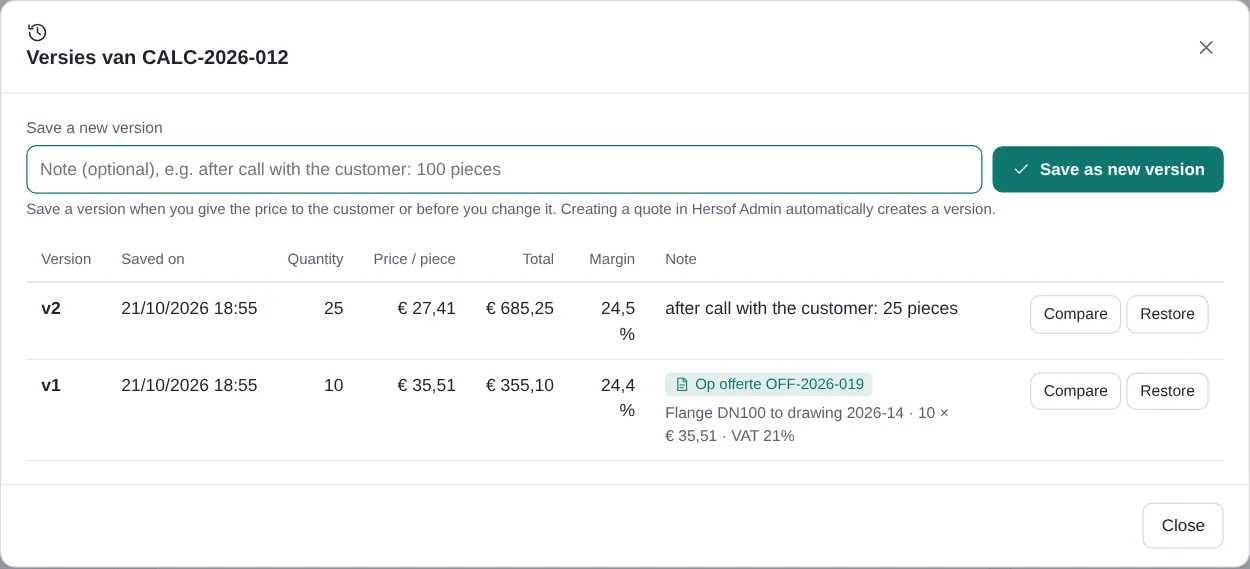
With the Versions button you save the state of a costing as a fixed version: v1, v2, v3 … under the same number. Save a version when you give the price to the customer or before you change it. Creating a quotation in Admin automatically creates a version.
- Save as new version — with a note if you like (e.g. after call with the customer: 25 pieces).
- Restore — the costing gets the inputs, lines, rates and price of that version again. The current state is first saved itself as a version: nothing is lost. The customer and the quotation stay linked. Then click Save.
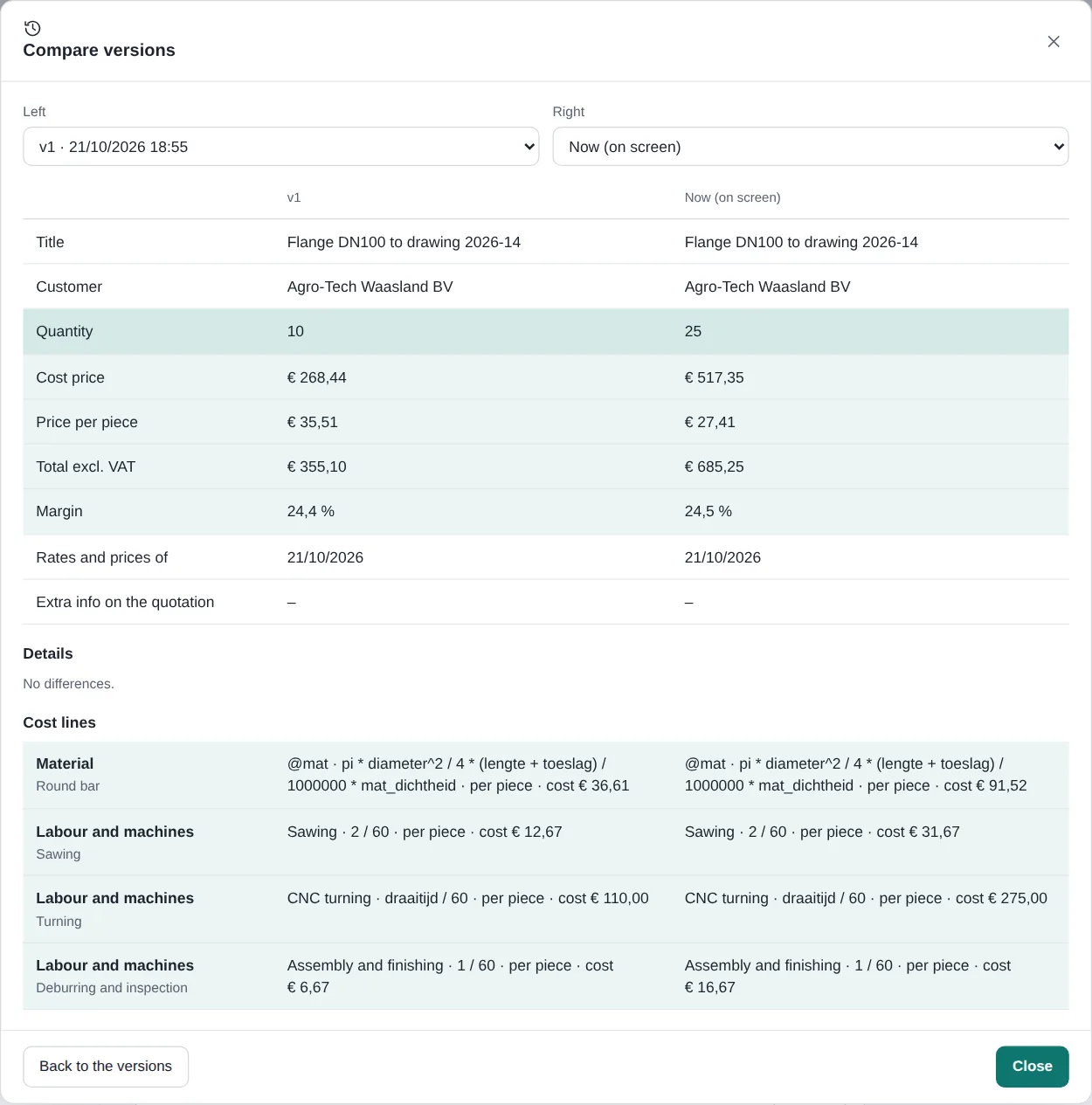
- Compare Team — two versions side by side; what differs is coloured. For each version you see which quotation it is on.
Templates
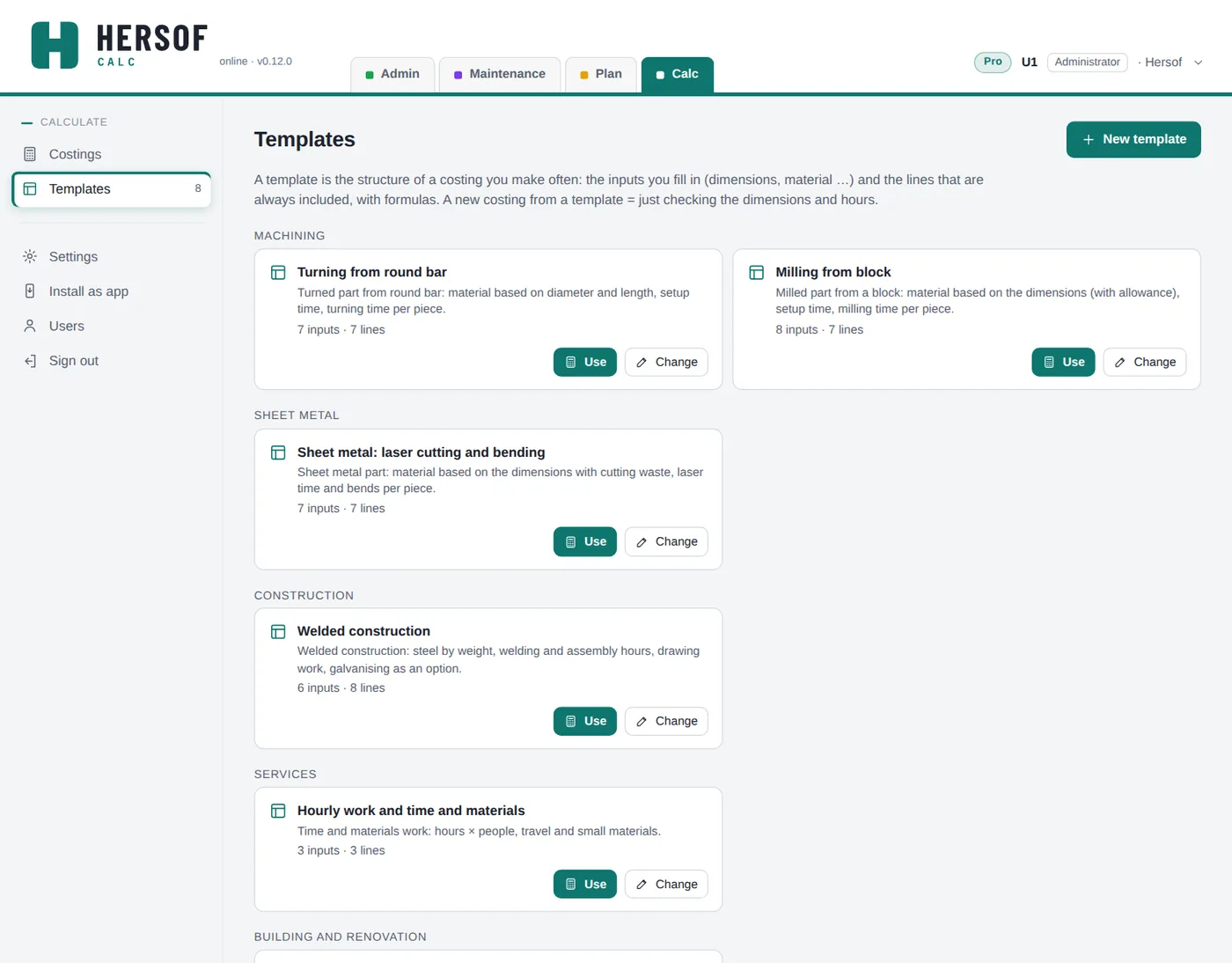
A template is the structure of a costing you make often: the inputs to fill in and the lines that are always in it, with formulas. With Use you start a new costing from the template.
- Own templates Team — create a template with New template, or save a good costing via ⋯ → Save as template. Give it a name, a group (e.g. Machining) and a standard quantity.
- In Starter you can use and view the starter templates, but not change them.
- Set a template you no longer use to inactive; costings made from it remain.
Settings
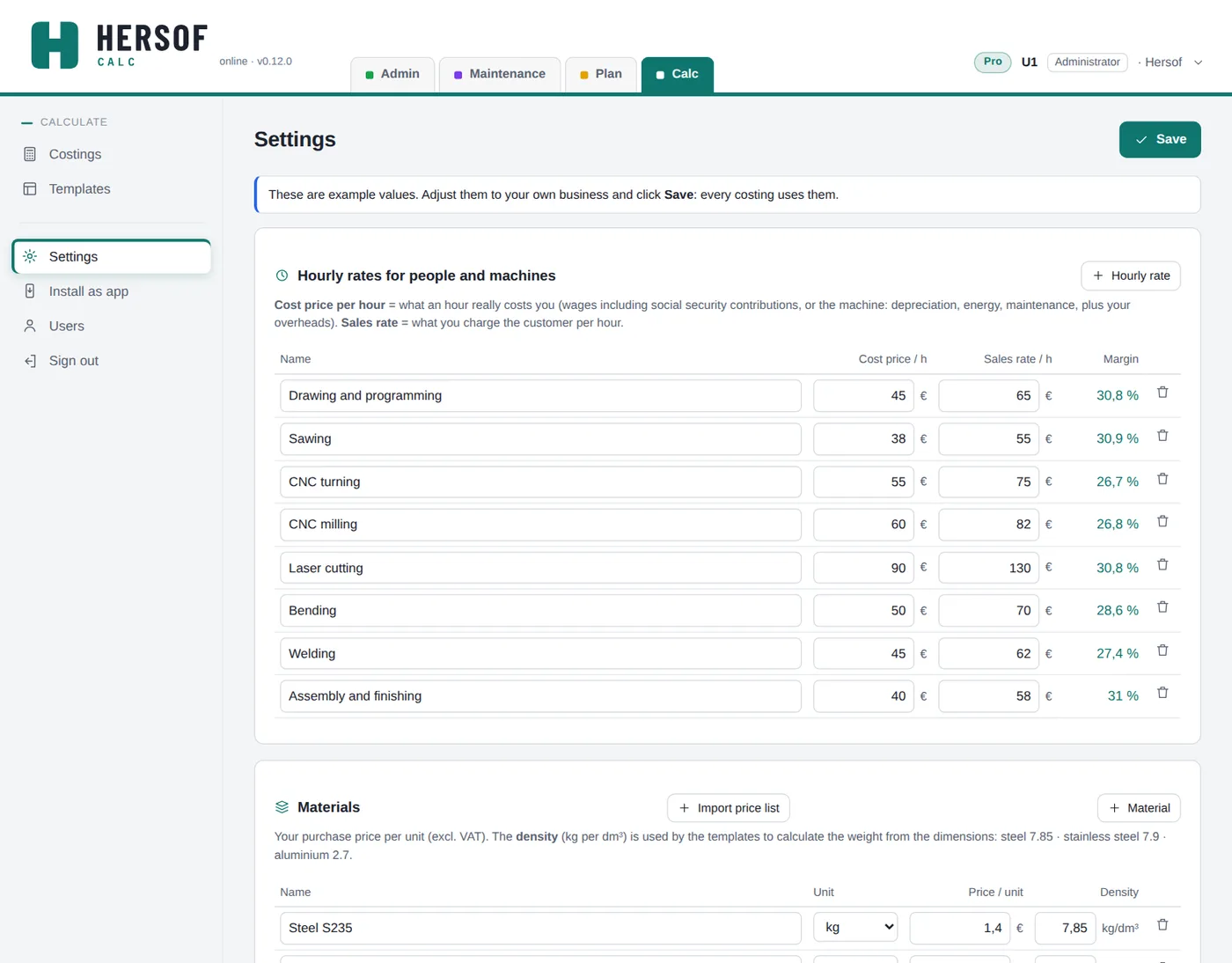
- Hourly rates and materials — see step 2. An hourly rate or material used in a template can still be deleted; Calc asks first.
- Mark-up and price — mark-up per type, minimum margin, rounding of the price per piece (always up), how long a quotation is valid, and the standard quantities for the price per quantity.
- Quotation for the customer — your company details, logo, VAT and the fixed text at the bottom of every quotation. With Hersof Admin, Calc takes the details, logo and fixed text from Admin; only fill in here what differs.
- Number of copies (without Admin) — print the quotation once or twice. The PDF you email stays a single copy.
- Hersof Plan: machine per hourly rate Pro — see Together with Hersof Plan.
Customers (without Hersof Admin)
- Without Hersof Admin you keep your customers in Customers: name, contact person, address, VAT number, e-mail and phone. With Look up in the CBE (company number or name) Calc fills in the name, address and VAT number.
- Choose the customer at the top of the costing, or create them right there. Their address and VAT number appear on the quotation and their e-mail address is ready when you email the quotation.
- In the customer record you see their costings and start a new costing. A customer you no longer use, you set to inactive.
- If you later take Hersof Admin, your customers are already there: it is the same customer list.
Together with Hersof Admin Team
- Email the quotation (without Admin) — via Quotation for the customer → E-mail: Calc shows the pdf and sends it directly to your customer (sender "your company via Hersof", replies come to you). Fill in your company e-mail address in Settings → Quotation for the customer. No number of pieces but tiered prices? Then the quotation only shows the price per quantity, each quantity with its total.
- Customers from Admin — choose the customer from the Admin list. Not in it? Create them right away as customer or prospect (they go into Admin). You see their details and their earlier costings.
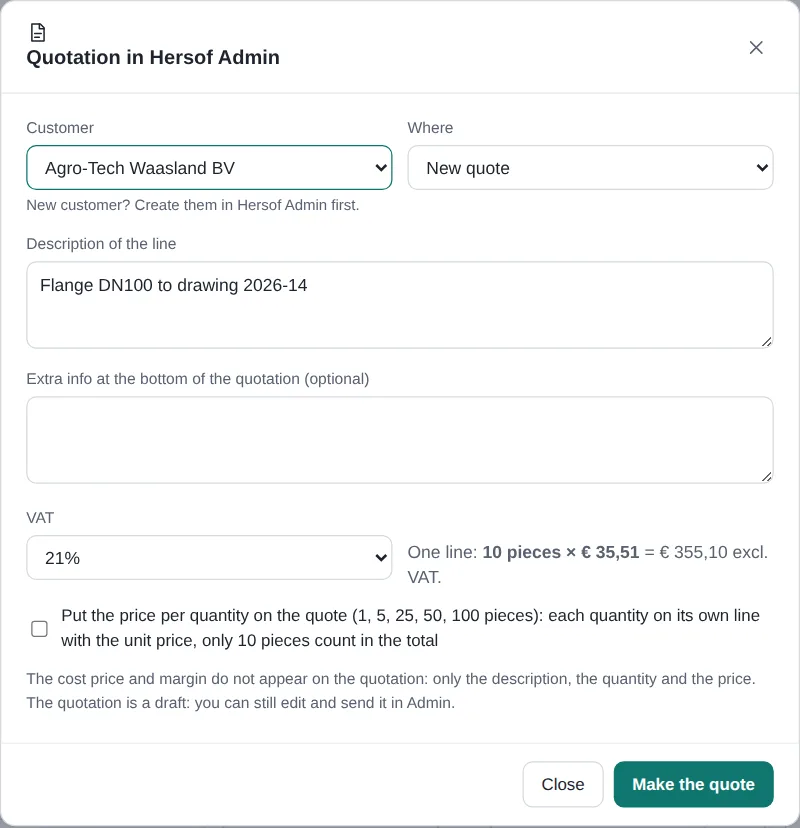
- Creating the quotation — choose a new quotation or add a line to a draft quotation of that customer. The quotation only shows the description, the quantity and the price, never the cost price or the margin. Choose the VAT. To put the price per quantity on the quote, keep Put the price per quantity on the quote ticked: it follows the Tiered prices choice of the calculation, and you can switch it off for a single quote. Each quantity then gets its own line, just like the ordered line (same description, the quantity and the unit price), all together from the smallest to the largest quantity. Only the ordered line has an amount and counts in the total; the others do not go to an invoice.
- Clicking twice or a dropped connection never creates a second quotation. The costing goes to In quote.
- In the customer record in Admin you see that customer's costings and start a new costing.
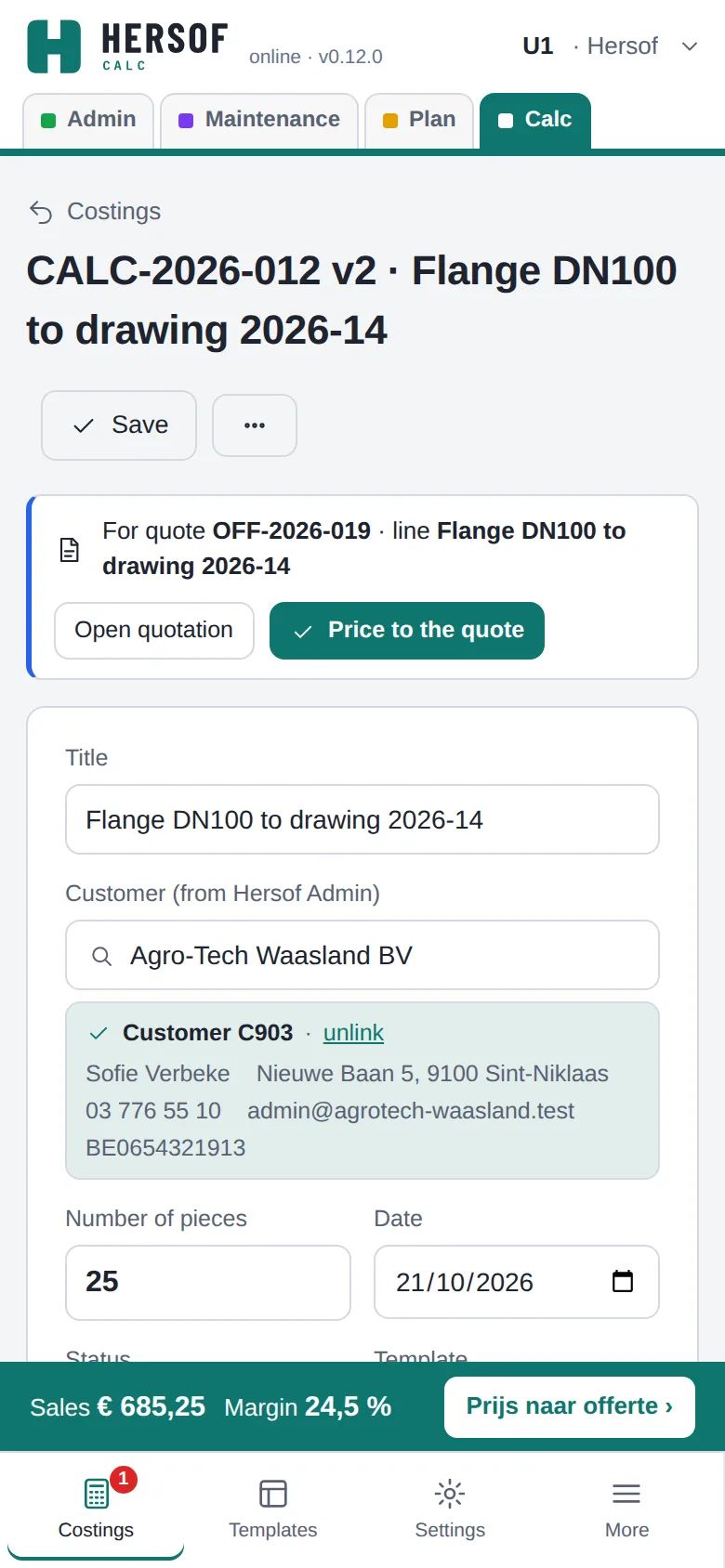
- From a quote in Admin — in Admin, click the calculator next to a quotation line. Calc opens with the customer, the description and the quantity of that line already filled in (choose a template or start empty). At the top you see For quote … · line …. Click Price to the quote: the unit price goes into that line (with the tiered prices if they are on) and you are back in the quote. If you click the calculator again later, the same costing opens. Only for a quote in draft.
- Even without Calc, the administrator can use a simple costing sheet per quotation line in Admin (from Team). See the Hersof Admin manual.
- The line knows the costing — in Admin you see the cost price and margin of that line, and the calculator opens the same costing. Open quotation in Hersof Admin remembers the way back: Close in Admin brings you back to the costing.
- The status follows the quotation — sent becomes Sent, approved or invoiced becomes Won, rejected becomes Lost, back to draft becomes In quote. The status is then shown as a label ("follows quotation …").
- Emailing the quotation (without Admin) — if your company email address is still missing, enter it in the window itself (Your email address): Calc saves it, you only do this once. Without Admin the quotation gets the costing number without "CALC-" (e.g. QUOTATION 2026-002).
Post-calculation Pro
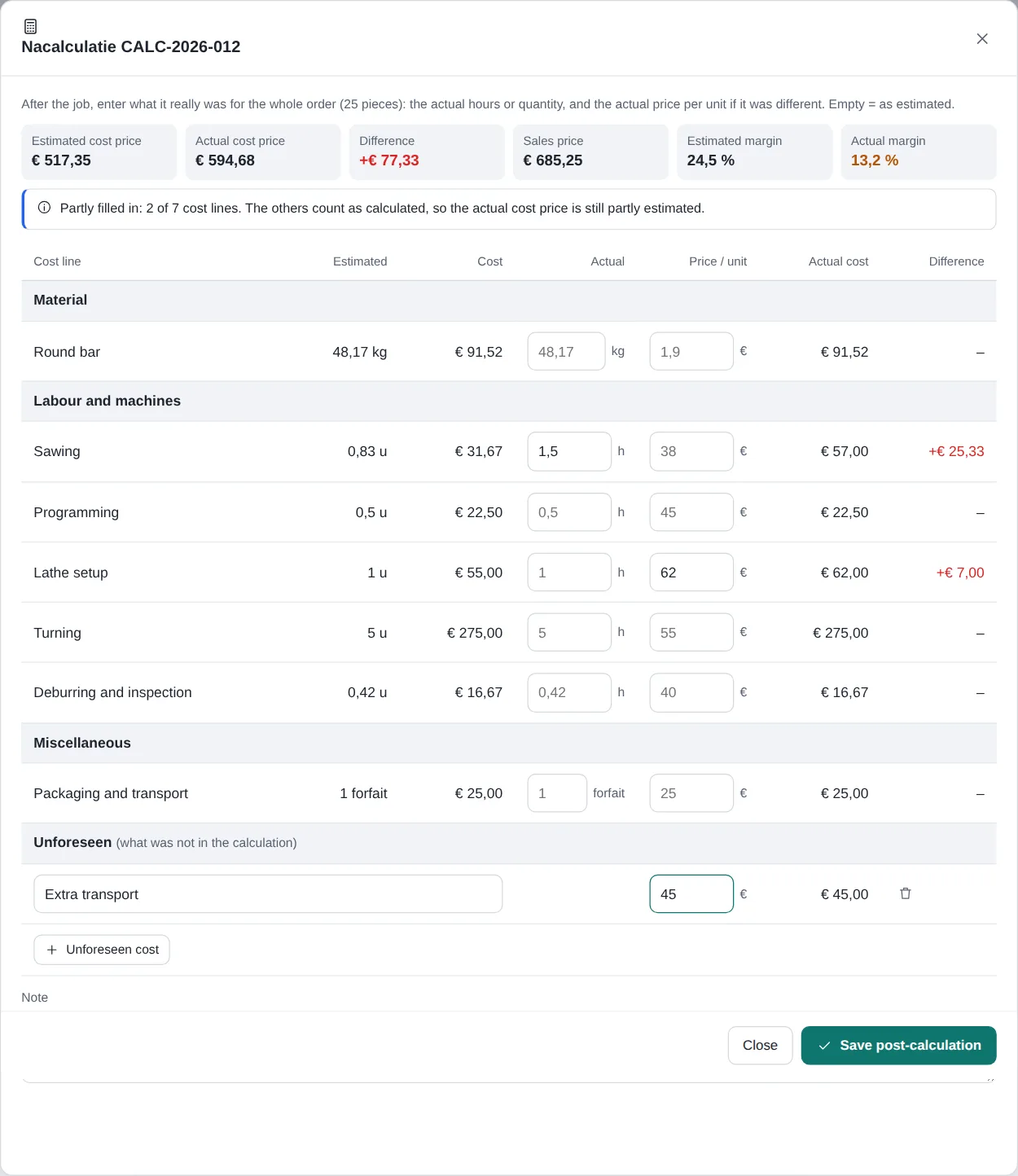
Was your costing right? After the job, click Post-calculation and enter per cost line what it really was, for the whole order: the actual hours or quantity, and the actual price per unit if it was different. Empty = as estimated. What was not in the costing you add as an unforeseen cost.
At the top you see the estimated and the actual cost price, the difference, and the estimated and the actual margin. Higher costs than estimated are in red, lower in green. Click Save post-calculation; the button in the sidebar then shows the actual margin.
Do you always see too few hours for a type of work? Then adapt the template: every next costing becomes more accurate.
A won costing is locked — once the costing is Won, you can no longer change the figures: that way the post-calculation always compares with what you offered the customer. You can still fill in internal notes and the post-calculation. If you really must (a mistake), click Change anyway… at the top. For extra work, better make a new costing (⋯ → Copy).
Together with Hersof Plan Pro
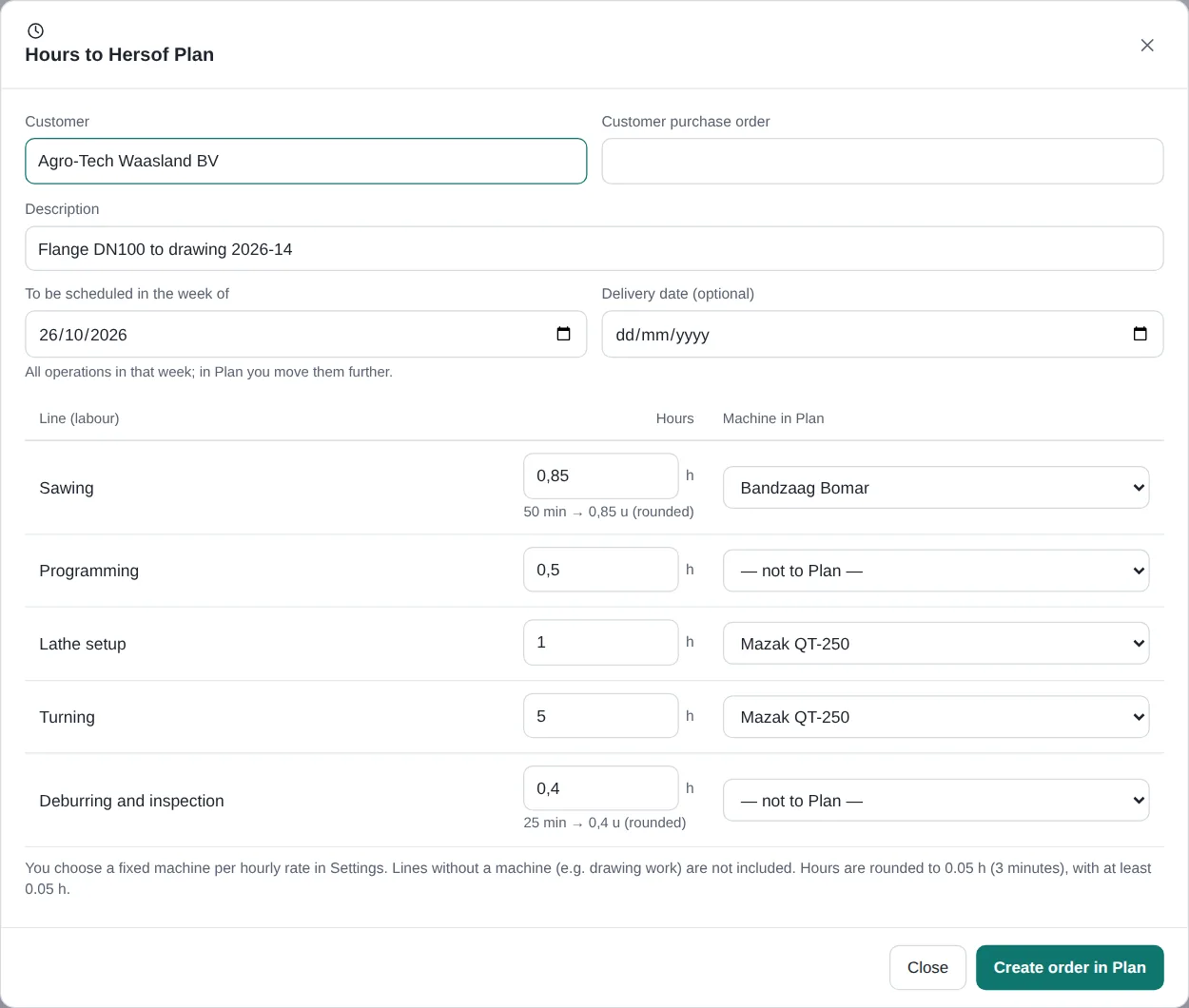
- Choose once in Settings → Hersof Plan: machine per hourly rate which machine the hours of each hourly rate go to (e.g. CNC turning → Mazak). An hourly rate without a machine (e.g. drawing work) is not included.
- In the costing, click Hours to Hersof Plan. Check the customer, the customer's purchase order, the week and the delivery date, and per labour line the hours and the machine.
- Click Create order in Plan: Plan gets an order with one operation per line, in the week you chose. Move them in Hersof Plan to the right weeks.
A second click or a dropped connection does not create a second order. The sidebar then shows In Hersof Plan since … with a button to open the order.
Importing a price list Pro
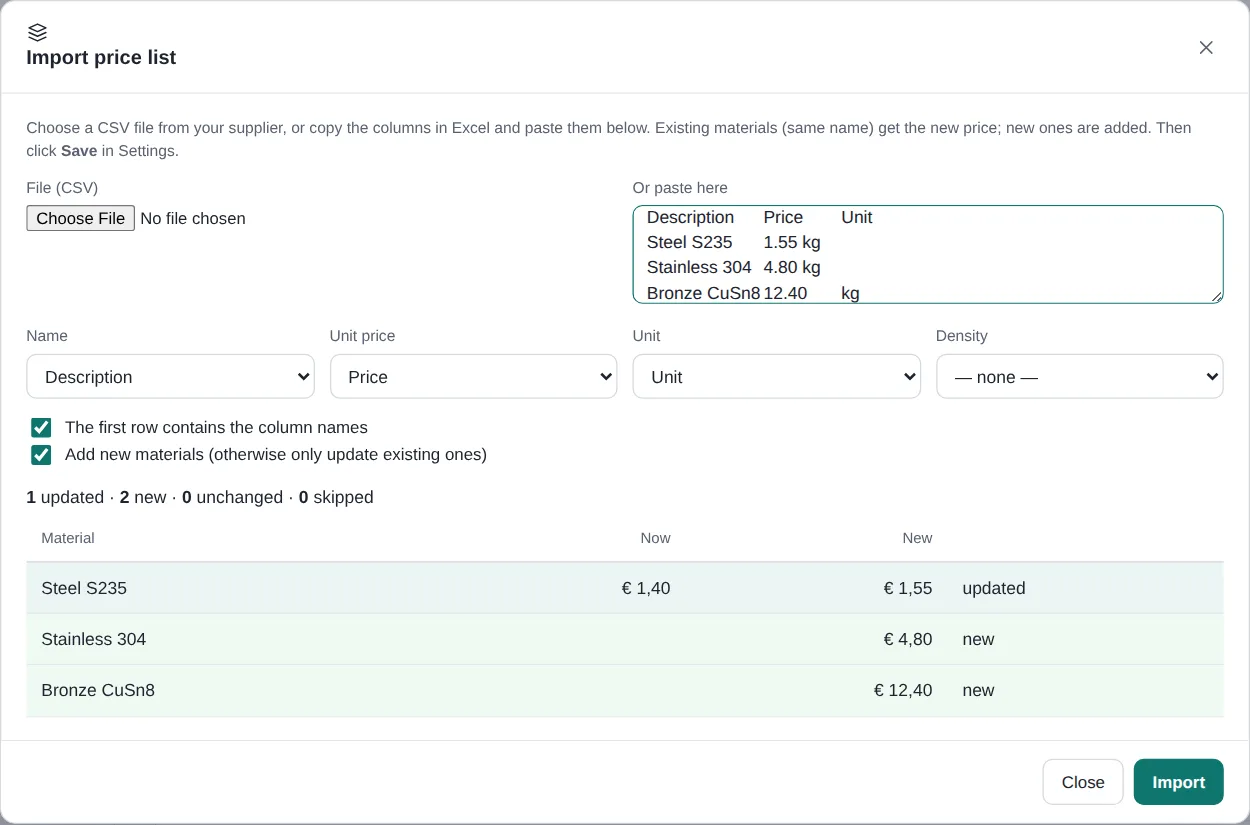
- In Settings → Materials, click Import price list.
- Choose an Excel (.xlsx) or CSV file from your supplier, or copy the columns in Excel and paste them into the box.
- Calc recognises the columns (name, price, unit, density); adjust them if needed. You see which materials get a new price, which are new and which stay unchanged.
- Click Import and then Save.
A material is recognised by its name (capitals do not matter). Existing costings keep their prices of the moment.
Recycle bin and your data
Deleted something by mistake? Don't panic: it stays in the recycle bin for 30 days. Only the administrator sees the recycle bin, in Settings → Recycle bin and your data.
- Restore — one click brings it back, exactly as it was (number, date …), together with whatever was removed with it (e.g. the operations of an order). Whatever exists again is never overwritten; if something fails, you see why.
- For each deletion you see when, by whom and until when it stays in the recycle bin. After 30 days it is gone for good, photos and attachments included.
- Download my data — one zip file with all your data from this app (opens in Excel) and the photos, attachments and documents. That way you always have your own copy. Keep it in a safe place. If your last download is more than 3 months ago, the administrator gets a reminder.
Language, display and installing
- Click your name top right: display (light, dark or as your device), language (Nederlands, Français, English, Deutsch), Manual, Info for support and Sign out. These choices apply in all Hersof apps.
- Install as app (menu on the left) — own window and icon. In Edge or Chrome with one click; on an iPhone via the share button → Add to Home Screen.
- On a phone the price is in a bar at the bottom; tap it to go to the price.
Packages and trial period
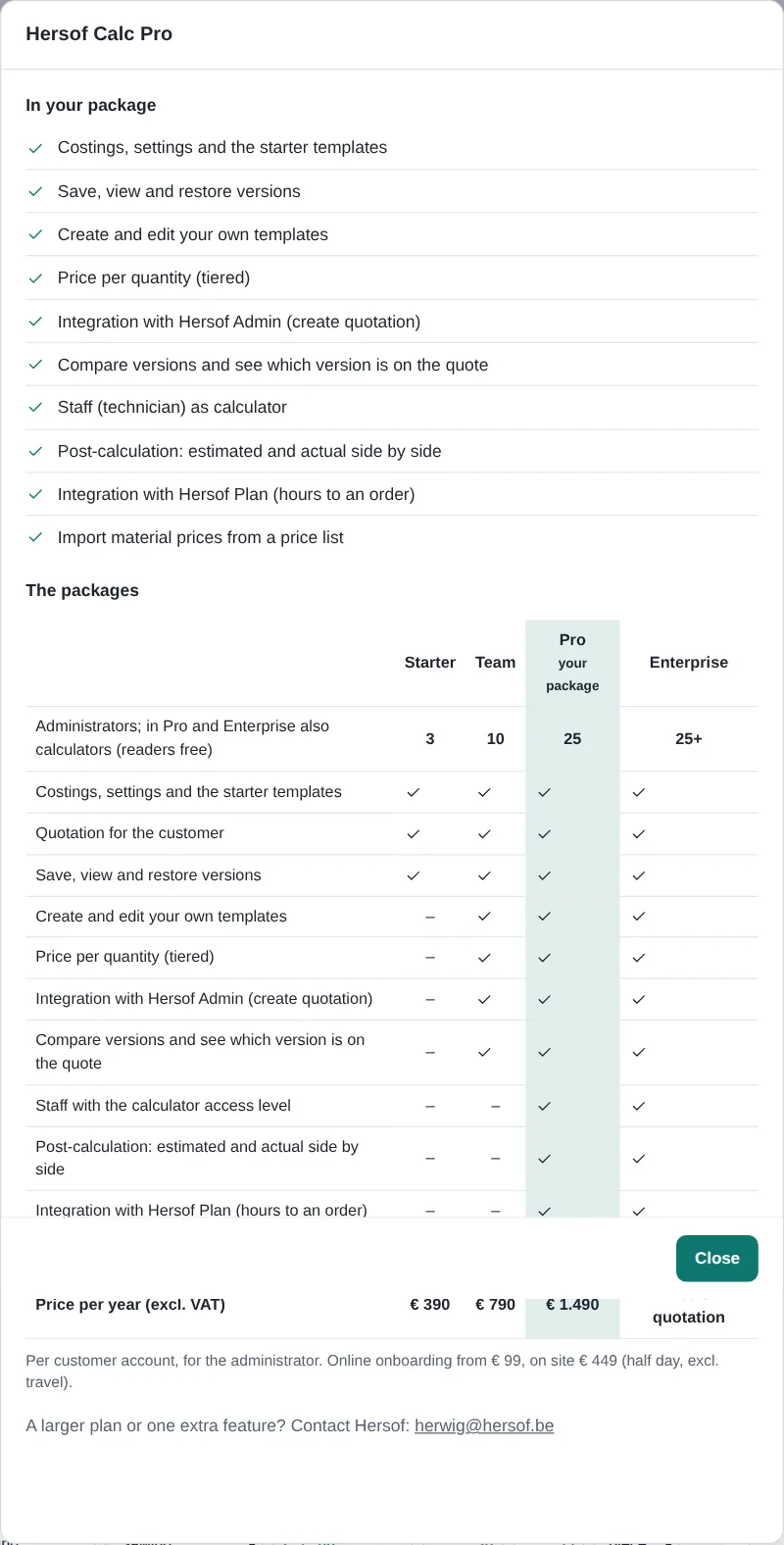
| Starter | Team | Pro | Enterprise | |
|---|---|---|---|---|
| Administrators (in Pro and Enterprise also calculators) | 3 | 10 | 25 | more than 25 |
| Readers | unlimited, free | |||
| Costings, settings, starter templates, quotation for the customer | ✓ | ✓ | ✓ | ✓ |
| Save, view and restore versions | ✓ | ✓ | ✓ | ✓ |
| Own templates, price per quantity | – | ✓ | ✓ | ✓ |
| Create quotation in Hersof Admin, compare versions | – | ✓ | ✓ | ✓ |
| Calculator, post-calculation, Hersof Plan, import price list | – | – | ✓ | ✓ |
| Price per year (excl. VAT) | € 390 | € 790 | € 1,490 | on quotation |
Per customer account. Remote onboarding € 249, remote help € 95 per hour, on site € 595 (half day, excl. travel). Help by email is always included. More on the Hersof Calc page.
Trial period — for the first 30 days you work with all the functions of Pro. From 7 days before the end, the administrator sees a message at the top.
Need help?
Mail herwig@hersof.be. Something wrong? Click your name → Info for support, copy the text and paste it into your email. Errors in the app are also reported to Hersof automatically.